Matter with eWeLink: Supported Devices, Setup, and Pairing Tips
See which Matter devices work with eWeLink and how to set them up.

Organize your devices, find them faster, and simplify everyday control with rooms, groups, scenes, and more.
A smart home may start with one light or plug, but it can quickly grow across multiple rooms and locations.
eWeLink provides several tools to help you find the right device faster, control related devices together, and reduce repeated actions.
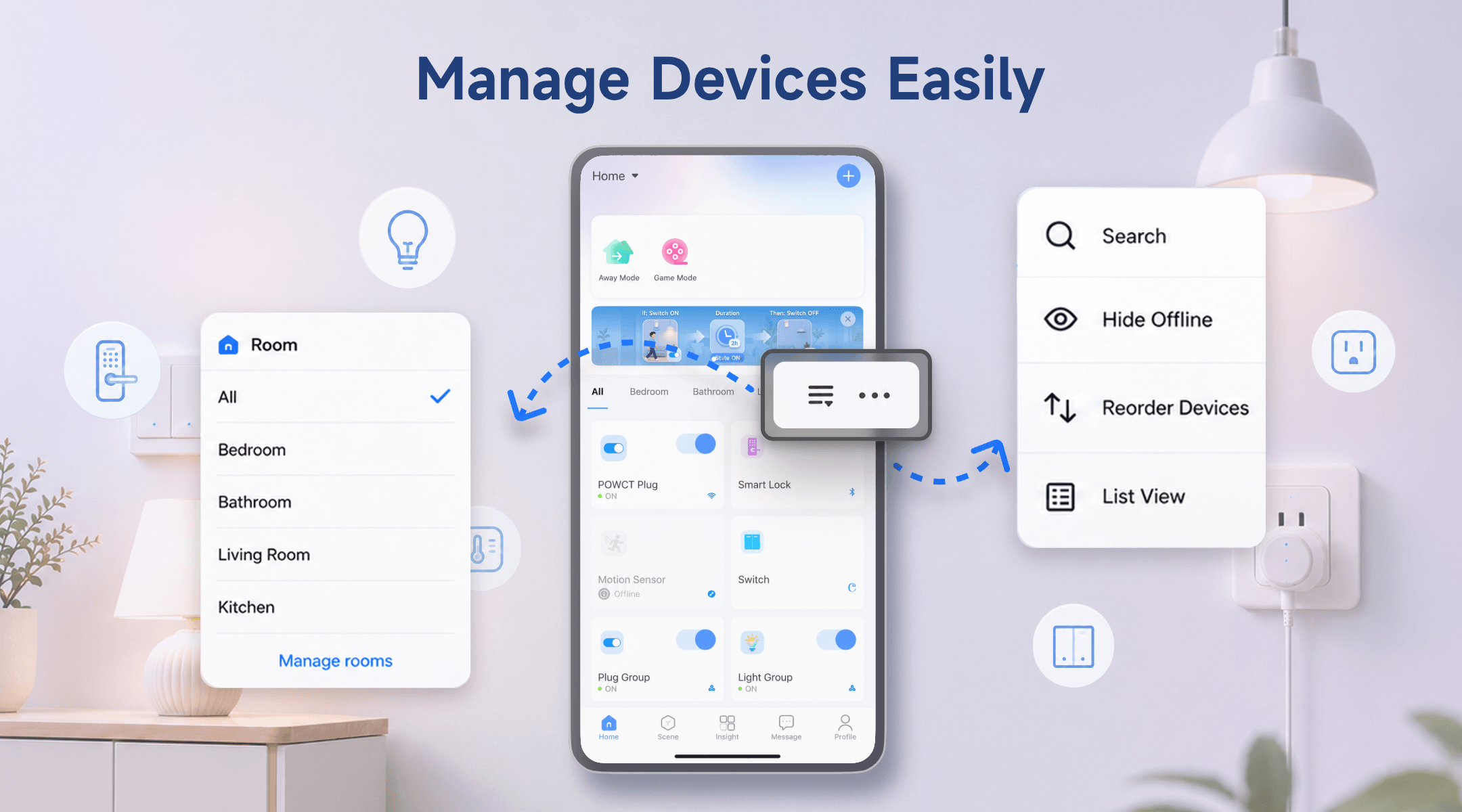
Create a separate Home for each location you manage, such as your home, office, or vacation house.
Within each home, assign devices to rooms such as the living room, bedroom, or kitchen. You can then switch between rooms directly from the Home page instead of scrolling through every device.
Open the room list and tap Manage rooms to create, rename, or reorder rooms.
Clear device names also make devices easier to search and recognize. Instead of names such as “Switch 1,” use names that describe what they control:
The Home page includes several tools for managing longer device lists:
Keeping everyday controls first and less frequently used devices farther down can make the Home page much easier to navigate.
When compatible devices are usually controlled in the same way, create a device group.
For example, you can group several lights in one room and turn them on or off together from a single device card. Eligible groups can also be added to scene actions, reducing the number of actions you need to configure.
Rooms and groups serve different purposes:
A Living Room may contain lights, plugs, sensors, and a fan, while only the lights need to be placed in a lighting group.
Scenes are useful when different types of devices need to work together.
For example, an Away Mode scene could turn off the lights and selected plugs, while a Movie Time scene could adjust the lights, curtains, and television plug with one tap.
For a manual scene you use often, enable Show in current home when editing the scene. It will then appear near the top of that Home page, allowing you to run it without opening the Scene tab.
This is especially useful for frequently used scenes such as:
Whenever you find yourself controlling the same devices in the same order, consider turning those actions into a manual scene or automation.
You can also add supported devices and manual scenes to an eWeLink widget for quicker access from your phone.
Use Home Sharing when someone needs access to multiple devices in the same Home, or Device Sharing when they only need control of selected devices.
You do not need to reorganize everything at once. Start by assigning devices to rooms, improving unclear names, moving frequent controls to the top, and creating groups or scenes for actions you repeat every day.
The goal is not simply to connect more devices. It is to make them easier to find, control, and use together.
What important features are we missing? We’d love to hear from you! Join our discussion here.
See which Matter devices work with eWeLink and how to set them up.
Manage devices faster from the eWeLink Home page.
Run your favorite eWeLink manual scenes with Siri voice commands on your iPhone.
Set a duration to confirm device state and run scenes reliably.