Matter with eWeLink: Supported Devices, Setup, and Pairing Tips
See which Matter devices work with eWeLink and how to set them up.

Your Android home screen can be more than a place for app icons. With eWeLink Android widgets, it can become a practical smart home dashboard—ready for quick device control, sensor checks, and one-tap scene execution.
Whether you want a single switch for your desk lamp, a larger control card for a multi-gang wall switch, a sensor card for your balcony door, or a scene shortcut for your work-from-home setup, eWeLink widgets help you handle everyday smart home actions with fewer steps.
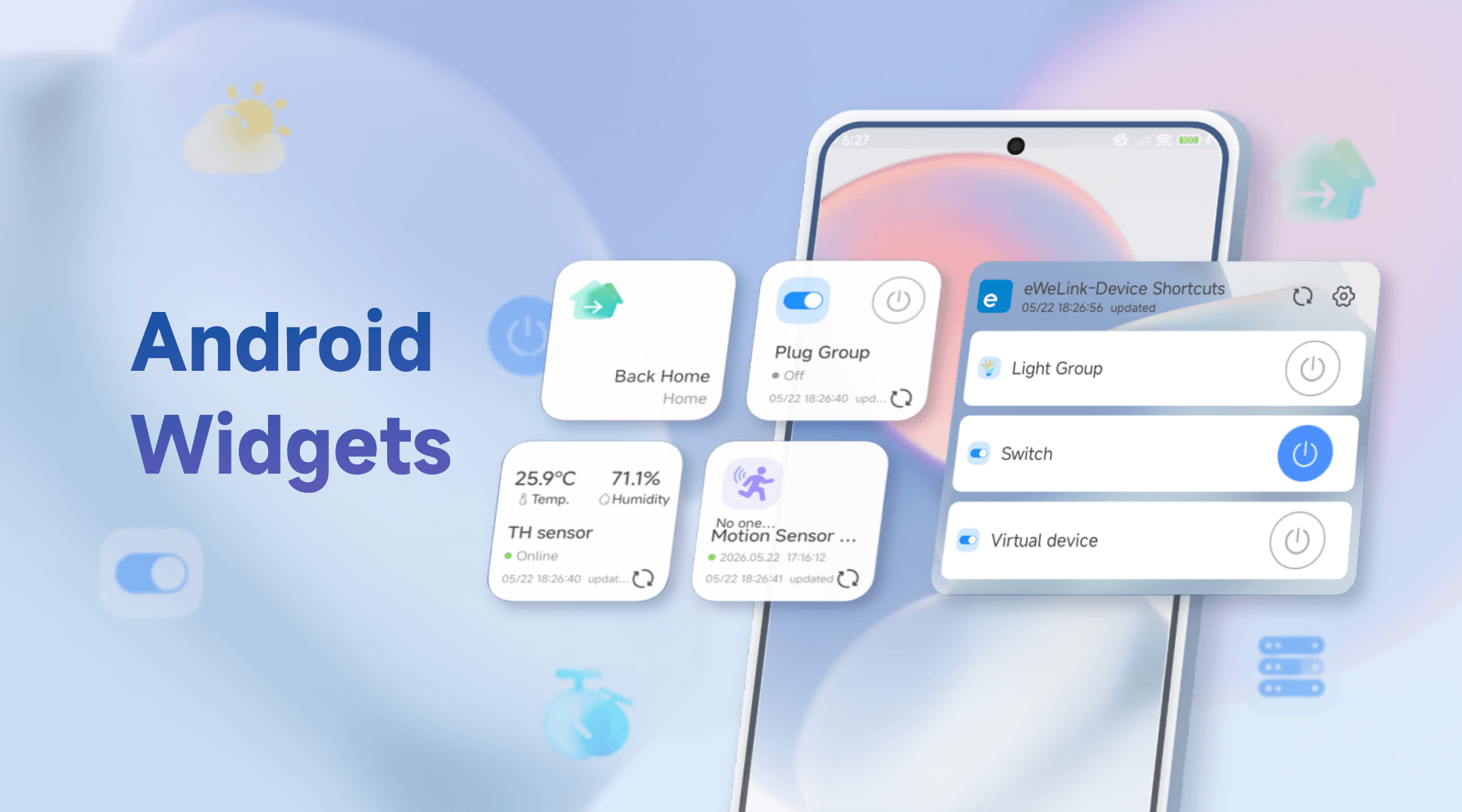
eWeLink Android widgets are designed for the devices and scenes you use most often. Instead of opening the app and navigating through rooms, you can place selected controls directly on your Android home screen.
Depending on the widget type and device, you can:
eWeLink Android widgets are available in different types and sizes, so you can choose the right layout based on what you want to control or check from your home screen.
The Device Control widget is designed for quick control of supported smart devices. It is available in 1×1, 2×2, and 4×2 sizes.
The 1×1 Device Control widget offers a compact shortcut for selected single-channel devices, such as certain plugs and switches. It is best for simple on/off control when you want to keep your home screen as minimal as possible.
The 2×2 Device Control widget gives a supported device more room on your home screen, making it easier to view and control frequently used devices. For example, you can add a smart plug, a single-channel switch, a desk lamp, or a supported temperature and humidity control device, then turn it on or off with a tap.
The 4×2 Device Control widget provides more space for devices with multiple controls. It is better suited for multi-gang switches, multi-channel plugs, lights, curtains, roller shutters, fan lights, and other supported devices that need more than a simple on/off button.
For example, you can use a 4×2 widget to control each channel of a wall switch, open or close a curtain, adjust a supported fan light, or manage a roller shutter from your Android home screen.
Supported device categories include selected smart plugs, switches, lights, light strips, curtains, roller shutters, fan lights, water valves, Zigbee devices, and certain supported third-party devices.
The Sensor View widget is available in a 2×2 size and is designed for checking device information at a glance.
Instead of opening the eWeLink app to view sensor status, you can keep important home information directly on your Android home screen. It supports selected sensors and monitoring devices, including temperature and humidity sensors, door/window sensors, motion and presence sensors, water leak sensors, smoke sensors, and air quality monitors.
For example, you can use a Sensor View widget to check the temperature and humidity in a baby room, see whether a balcony door is open or closed, monitor motion in a hallway, or keep an eye on a water leak sensor near the washing machine.
The Manual Scene widget lets you run manual scenes directly from your Android home screen. It is available in 1×1 and 2×2 sizes.
The 2×2 Manual Scene widget gives a favorite scene more visibility on your home screen. It is a good choice for an important routine you use often, such as a “Work Mode” scene that turns on your desk lamp, powers your monitor plug, and adjusts the room light with one tap.
The 1×1 Manual Scene widget is a compact shortcut for your favorite manual scenes. It takes up less space, so you can place several scene shortcuts together and trigger different routines quickly, such as Focus Time, Movie Mode, Balcony Care, or Laundry Check.
Manual scene widgets are especially useful for routines that involve multiple devices. Instead of controlling each device separately, you can start the whole setup from your home screen with a single tap.
Place a 2×2 Device Control widget for your desk lamp or monitor plug, then add a Manual Scene widget for your work setup. When you sit down, you can power on your workspace and adjust the lighting from the home screen.
Use a 4×2 widget for a multi-gang switch near the entrance. You can quickly control the hallway light, living room light, or porch light before stepping in or out. If you have a door sensor, add a sensor view widget to check whether the front door, balcony door, or garage door is open or closed.
Use sensor view widgets for areas where conditions matter. A temperature and humidity widget can help you monitor a baby room, storage room, or greenhouse. A water leak widget can be placed on your home screen if you want faster access to kitchen, bathroom, or laundry room alerts.
To add a widget:
When selecting devices or scenes, you can filter by home, which is helpful if you manage multiple homes in the eWeLink app.
When the eWeLink app is active, supported device widgets can keep device status updated in real time. If the app process is no longer active, widget status may not update automatically. You can tap the refresh button on the widget to manually update the latest status.
eWeLink Android widgets give you a flexible way to control and monitor your smart home from the home screen. You can keep simple switches close at hand, use larger cards for multi-action devices, check sensors at a glance, or run manual scenes without opening the app.
From workspaces and entryways to balconies, garages, laundry rooms, and sensor-monitored areas, Android widgets help turn everyday smart home actions into faster, more accessible controls.
What important features are we missing? We’d love to hear from you! Join our discussion here.
See which Matter devices work with eWeLink and how to set them up.
Manage devices faster from the eWeLink Home page.
Run your favorite eWeLink manual scenes with Siri voice commands on your iPhone.
Set a duration to confirm device state and run scenes reliably.