Going Away? Make Your Home Look Lived-In with eWeLink
Make your home look lived-in and stay connected while you’re away.

Control compatible smart devices over your home network, with less reliance on cloud connectivity.
When your internet connection goes down, you may still want to turn on a light or control a switch from your phone. With eWeLink’s LAN Control, compatible devices can communicate with the eWeLink app over your local network, allowing you to control them without relying on the cloud for every command.
Here’s how LAN Control works, how to enable it, and when it can be useful in your smart home.
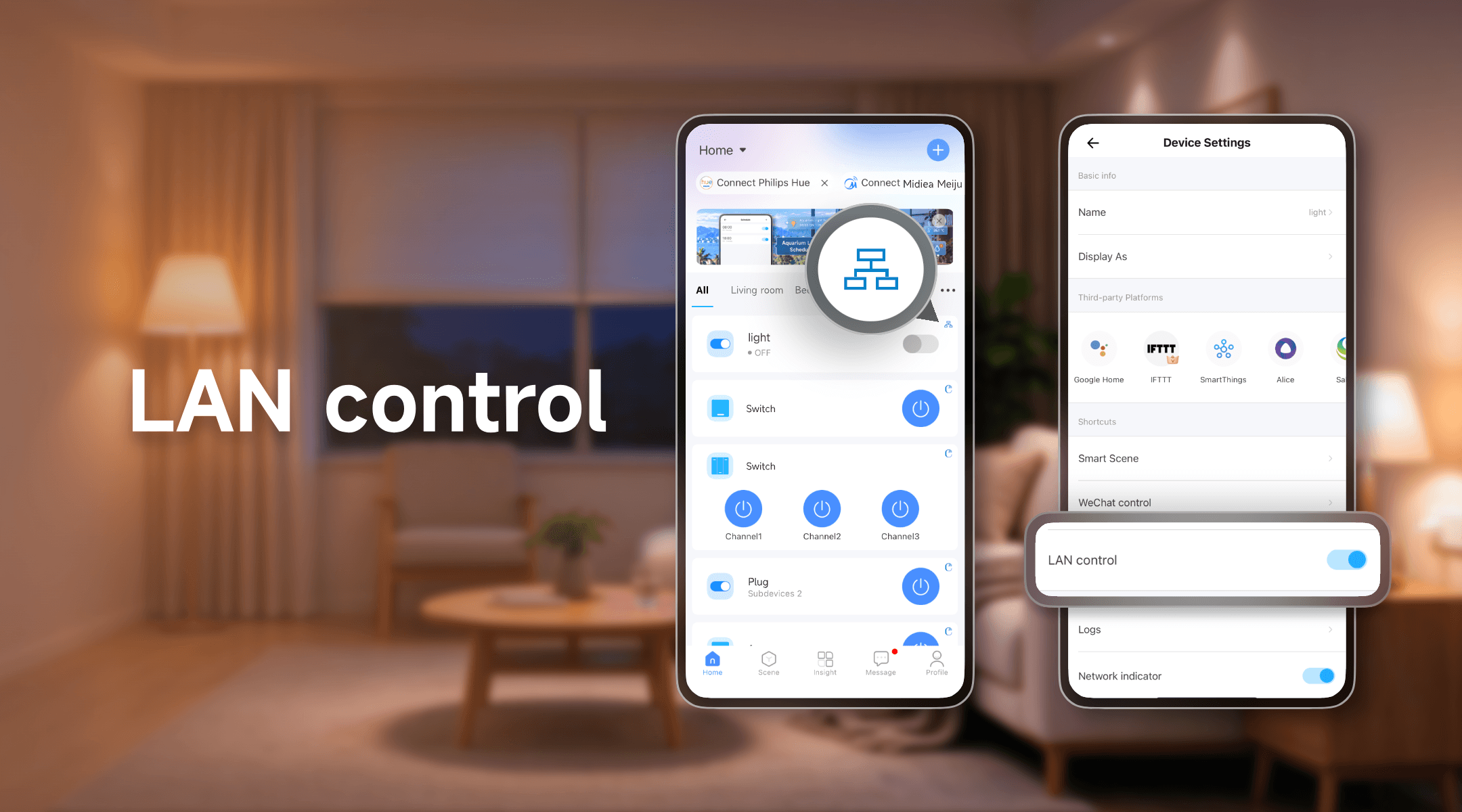
LAN stands for Local Area Network. In a smart home, it typically refers to the network that connects your phone and smart devices through your home router.
With LAN Control enabled, the eWeLink app can send supported control commands directly to compatible devices over this local network, rather than routing every command through cloud servers.
This offers two main benefits:
Keep in mind that LAN Control does not make every eWeLink feature available offline. Some functions still rely on internet access, and offline behavior can vary by device and feature.
Before getting started, make sure your phone and the compatible smart device are connected to the same local network.
Follow these steps:
If you cannot find the LAN Control option, your device or its current firmware may not support this feature.
To check whether local control works as expected, you can test the device while the internet connection is unavailable. Keep your router powered on and your local Wi-Fi network running.
LAN control is not available on every eWeLink-compatible device. Support depends on the device model, firmware, and implementation.
The easiest way to check is to open the device settings in the eWeLink app. If the LAN Control option is available, you can enable it and test local control.
Don’t assume that all devices from the same brand or product family support LAN Control. Check each device individually.
Lighting is a straightforward way to benefit from local control.
For example, if your internet connection is temporarily unavailable but your home network is still running, you may still be able to turn a compatible smart light or switch on or off from the eWeLink app.
This is particularly useful when you want to control devices around your home without depending entirely on cloud connectivity.
If you use a compatible smart plug to control a lamp or another non-critical electrical device, LAN Control may let you switch it on or off locally.
Make sure both the smart plug and the control function you need support LAN Control. Also, use smart plugs only with electrical loads they are rated to handle.
For devices that require continuous operation or have safety-critical functions, don’t rely on LAN Control as the only way to monitor or control them.
If a light or switch feels slow to respond, local control may help reduce the delay caused by communication with cloud servers.
The improvement depends on your home network, device firmware, and other conditions, so a faster response is not guaranteed.
If you notice inconsistent performance, check your Wi-Fi coverage and router configuration as well as the device’s LAN Control settings.
Both control methods have their place in a connected home.
Feature | Cloud Control | LAN Control |
Communication | Through cloud services | Directly over the local network |
Internet connection | Required | Not required for supported local commands |
Control away from home | Supported | Not supported directly |
Response time | Depends partly on cloud connectivity | May reduce cloud-related delays |
Available functions | Depends on the device and cloud services | Limited to supported local controls |
Network dependency | Internet and cloud availability | Local network and device availability |
LAN control is best understood as an additional way to control compatible devices locally, rather than a complete replacement for cloud connectivity.
If local control isn’t working as expected, try the following checks.
Issue | What to Check |
No LAN Control option. | Check whether the device and its firmware support the feature. |
The device cannot be controlled when the internet is down. | Make sure the router is still running, the device has power, and your phone and device are on the same local network. |
LAN Control is enabled but doesn’t work reliably. | Check whether your router uses guest-network isolation or other settings that prevent devices from communicating locally. |
Control is slow or inconsistent. | Check Wi-Fi coverage, restart the router if needed, and make sure the device firmware and app are up to date. |
Some routers or network configurations may prevent local communication even when the phone and device appear to be connected to the same Wi-Fi network.
If the problem persists, submit feedback through the eWeLink app with the affected device model and a description of the issue.
LAN Control gives you another way to interact with compatible smart devices in your home. It can reduce reliance on cloud connectivity for supported commands and may improve response times in some setups.
For the best experience, check which devices support LAN Control, enable it where available, and test the functions you use most often.
What important features are we missing? We’d love to hear from you! Join our discussion here.
Make your home look lived-in and stay connected while you’re away.
Discover how eWeLink LAN Control enables local control of compatible devices.
Check on your pets and manage your home remotely while away.
Discover how to control, schedule, and automate your lights with eWeLink for a smarter, more comfortable home.