Going Away? Make Your Home Look Lived-In with eWeLink
Make your home look lived-in and stay connected while you’re away.

Making one light smart is easy. The bigger difference comes when the lights around your home start working together—turning on at the right time, adjusting to your daily routine, and responding automatically to changing conditions.
With eWeLink, you can start with a single smart bulb or switch and gradually build a lighting setup that fits your home. Here’s how to go from basic control to smarter lighting automation.
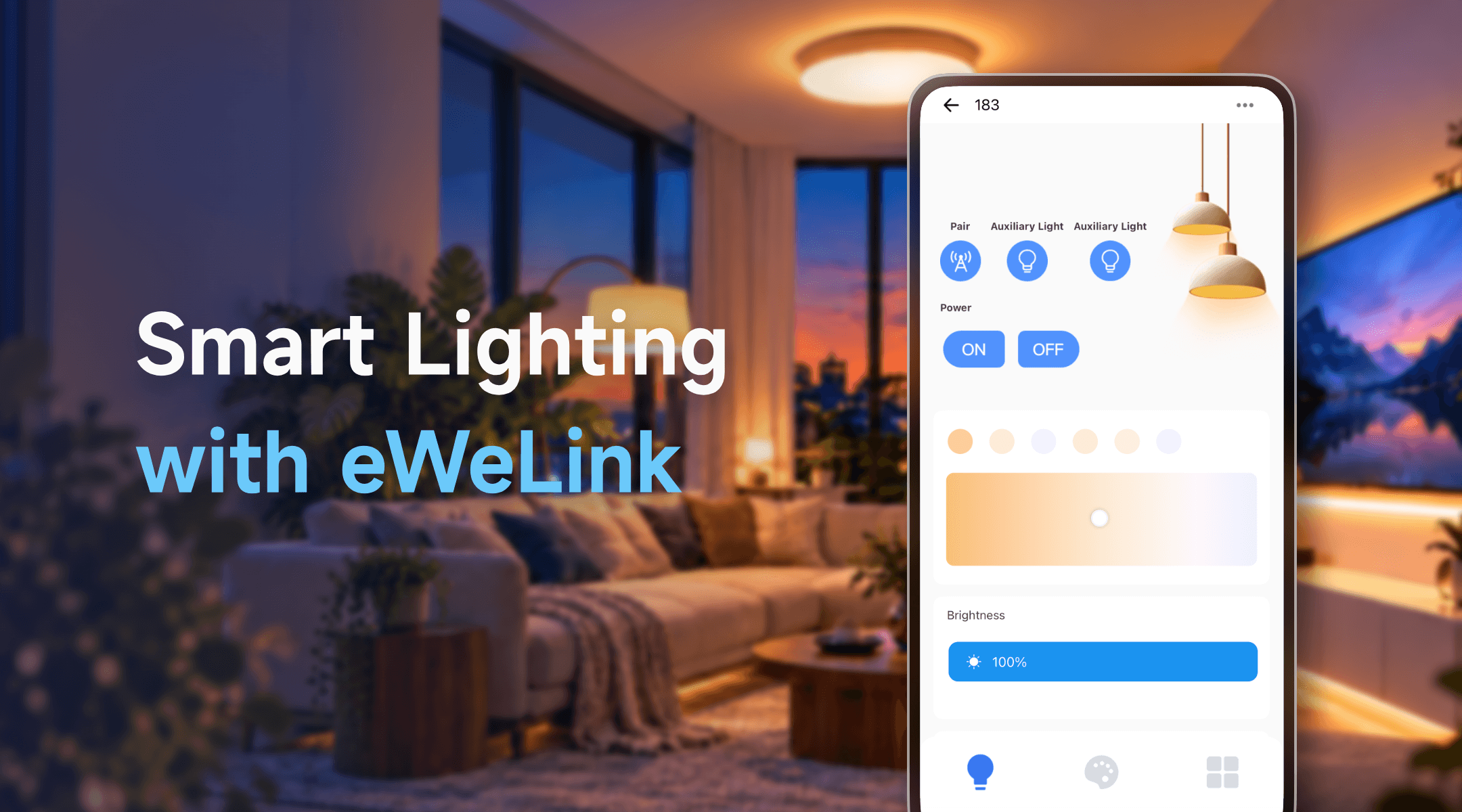
You don’t need to replace every light in your home to get started. Begin with the lights you use most often, such as those in your bedroom, living room, or hallway.
There are two common ways to make your lighting smart:
Once your devices are connected to eWeLink, you can control them directly from the app, whether you’re relaxing on the sofa or checking your lights while away from home.
Tip: Start with one room before expanding to the rest of your home. This makes it easier to find out which controls and automations are most useful to you.
Imagine walking into your living room and turning on several lights with one tap instead of controlling each one separately.
eWeLink offers two useful ways to make this happen.
If you have several compatible lights that support grouping, you can create a Device Group to control them together.
For example, if you have three compatible smart bulbs in your living room, grouping them lets you turn them on or off together.
What if your living room has a ceiling light controlled by a smart switch, a smart bulb in a floor lamp, and an LED strip behind the TV?
Instead of controlling them individually, create a manual scene that performs multiple actions with one tap.
For example, a “Living Room On” scene could:
You can also create a “Living Room Off” scene to turn everything off together.
Which should you choose? Use Device Groups when compatible devices need to work together in the same way. Use Manual Scenes when you want different devices to perform different actions with a single tap.
Some lighting tasks happen at almost the same time every day. Instead of remembering to turn lights on or off, let eWeLink handle them automatically.
With schedules and time-based smart scenes, you can build lighting routines around your day.
Here are a few ideas:
If your household usually leaves for work or school around the same time, schedule selected lights to turn off after your normal morning routine.
You won’t have to remember to switch them off every weekday.
Instead of choosing a fixed time, use Sunset as a Smart Scene condition.
For example:
When the sun sets → Turn on the porch light
This allows your lighting routine to follow changing sunset times throughout the year.
Lighting isn’t just about turning lights on and off. The right combination of lights can make your home more comfortable for different activities.
With eWeLink Manual Scenes, you can save combinations of device actions and activate them whenever you need them.
Here are some practical scenes to try:
Ready to watch a movie?
One tap creates a more comfortable setting for watching movies.
After a busy day, switch to softer lighting.
If your smart bulbs support adjustable color temperature, you can use warmer lighting for relaxing and cooler lighting when you prefer a brighter, more focused environment.
Instead of checking every room before bed, create a “Good Night” scene that turns off selected lights throughout your home.
You can activate it with one tap as part of your bedtime routine.
Good to know: The brightness, color, and color-temperature options available in a scene depend on the capabilities of your lights. Not every smart bulb or switch supports these adjustments.
Once your basic lighting routines are in place, you can go a step further.
By combining compatible sensors with eWeLink Smart Scenes, your lights can respond to movement, doors opening, or changes in natural light.
A hallway is a great place to start with motion-activated lighting.
When motion is detected → Turn on the hallway light
This can be especially useful at night when you don’t want to search for a switch.
If your sensor supports a no-motion or absence condition in eWeLink, you can also create a separate scene to turn the light off when the area is no longer occupied.
A door sensor can make your entryway more convenient after dark.
For example:
When the front door opens during evening hours → Turn on the entryway light
By setting an effective period for the scene, you can prevent the light from turning on unnecessarily during the daytime.
Sometimes the problem isn’t forgetting to turn a light on—it’s forgetting to turn it off.
For supported devices, eWeLink’s State Duration Conditions let you trigger a scene only after a device has stayed on or off for a specified period.
For example:
When a lamp stays on for 2 hours → Turn it off automatically
You can also choose to receive a notification instead, reminding you to check whether the light is still needed.
It’s a simple way to reduce unnecessary electricity consumption without changing your everyday habits.
A smarter lighting setup doesn’t have to be complicated.
Start by controlling one light from your phone. Then try controlling several lights together, creating a bedtime routine, or setting your porch light to turn on at sunset. As you become more comfortable, add scenes and sensors that make everyday tasks easier.
With eWeLink, you can build your lighting setup gradually—from simple one-tap control to automatic responses that fit the way you live.
What important features are we missing? We’d love to hear from you! Join our discussion here.
Make your home look lived-in and stay connected while you’re away.
Discover how eWeLink LAN Control enables local control of compatible devices.
Check on your pets and manage your home remotely while away.
Discover how to control, schedule, and automate your lights with eWeLink for a smarter, more comfortable home.