Going Away? Make Your Home Look Lived-In with eWeLink
Make your home look lived-in and stay connected while you’re away.

Run your favorite eWeLink scenes with a simple voice command.
With Siri support in the eWeLink app, you can add manual scenes to Siri Shortcuts and control eWeLink-supported devices by voice on your iPhone. Whether you are leaving home, starting movie time, or getting ready for bed, one phrase can trigger a full set of smart home actions.
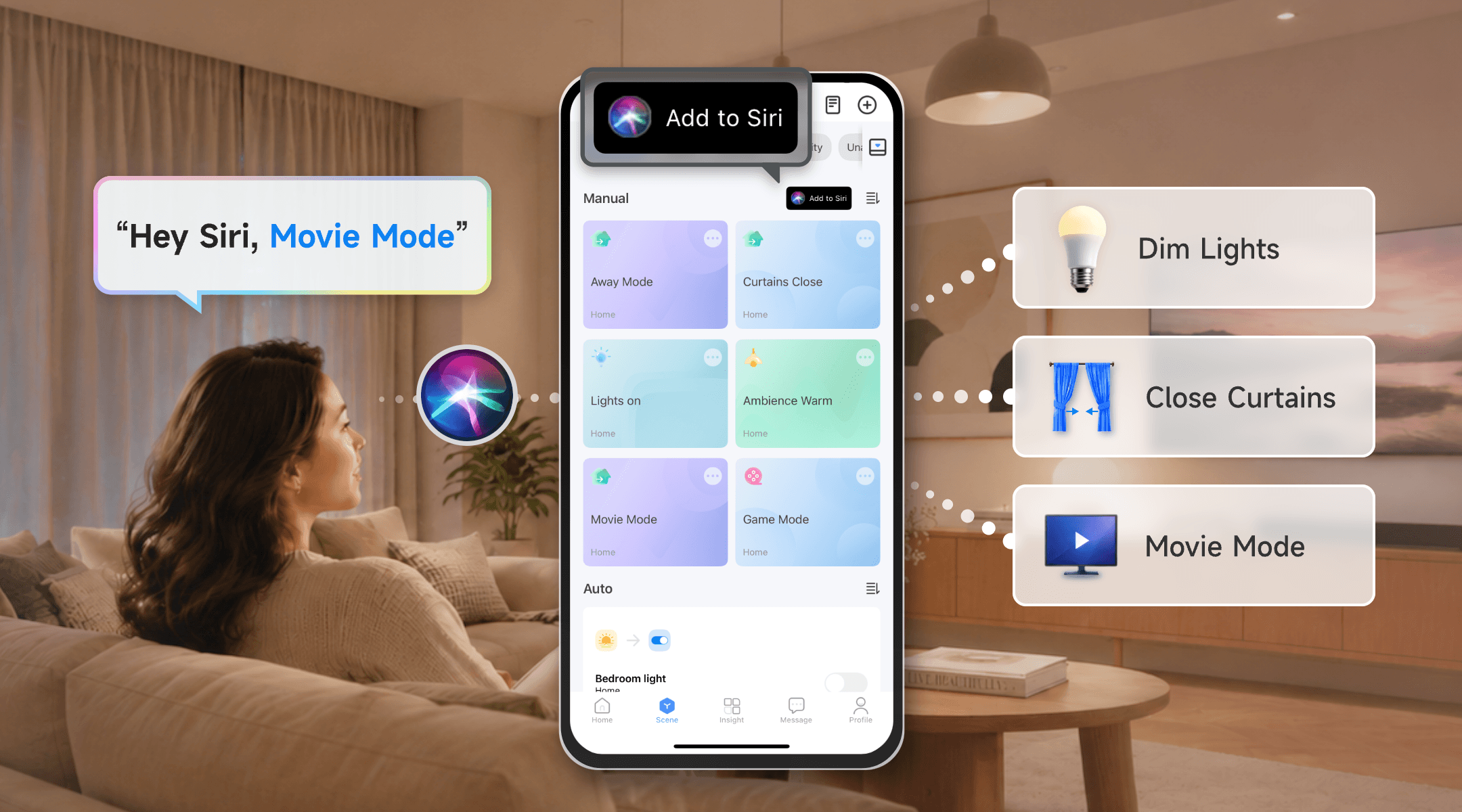
Manual scenes let you control multiple devices at once. After adding a manual scene to Siri, you can run it without opening the eWeLink app.
For example, you can say:
“Hey Siri, Away Mode.”
“Hey Siri, Back Home.”
“Hey Siri, Movie Mode.”
“Hey Siri, Good Night.”
A single command can turn off lights, switch plugs, close curtains, or run other actions included in your eWeLink manual scene.
Movie Mode
Use this scene to create a more comfortable viewing setup. For example, you can dim the lights, close the curtains and turn on selected entertainment devices with one voice command. Just say “Hey Siri, Movie Mode.”
Away Mode
Use this scene when you are heading out. It can turn off selected lights, switch off plugs, and close curtains.
Back Home
Use this scene when you arrive home. It can turn on the entry light, living room light, or other devices you use most often.
Good Night
Use this scene before bed. It can turn off unnecessary devices, close curtains, and leave only essential devices running.
There are two ways to add eWeLink manual scenes to Siri: you can add a new scene to Siri right after creating it, or add Siri Shortcuts for scenes you already have.
Option 1: Add a New Scene to Siri
When creating a new manual scene, you can add it to Siri immediately after setup.
In the eWeLink app, go to Scene > Manual, then tap the + icon. Choose Tap to perform as the trigger, add the actions you want under Then, and save the scene with a clear name, such as Turn on the bedroom light.
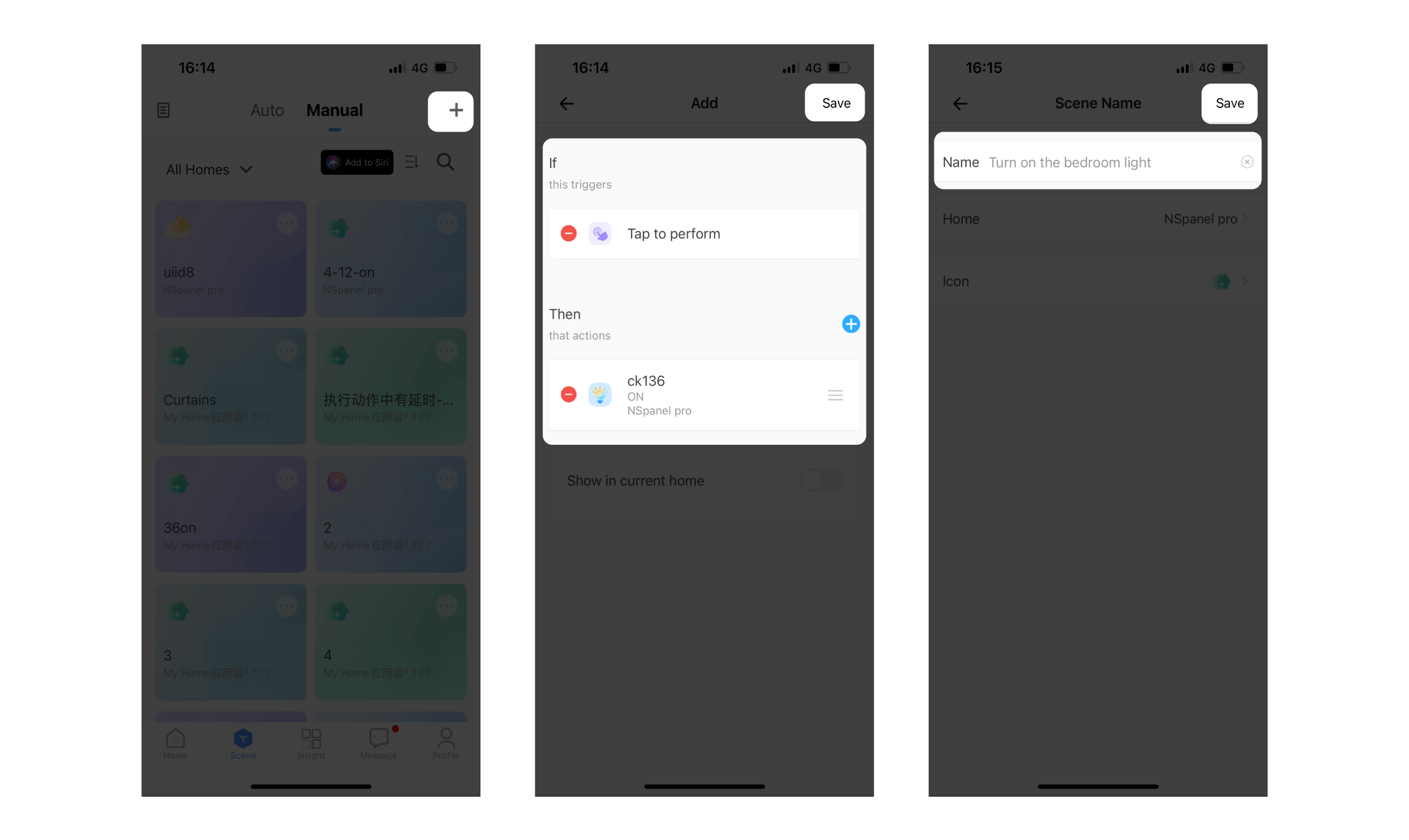
After the new scene is created, tap Add to Siri shortcut. On the Siri Shortcut page, tap Add to Siri next to the scene, confirm the voice phrase, and tap Done.
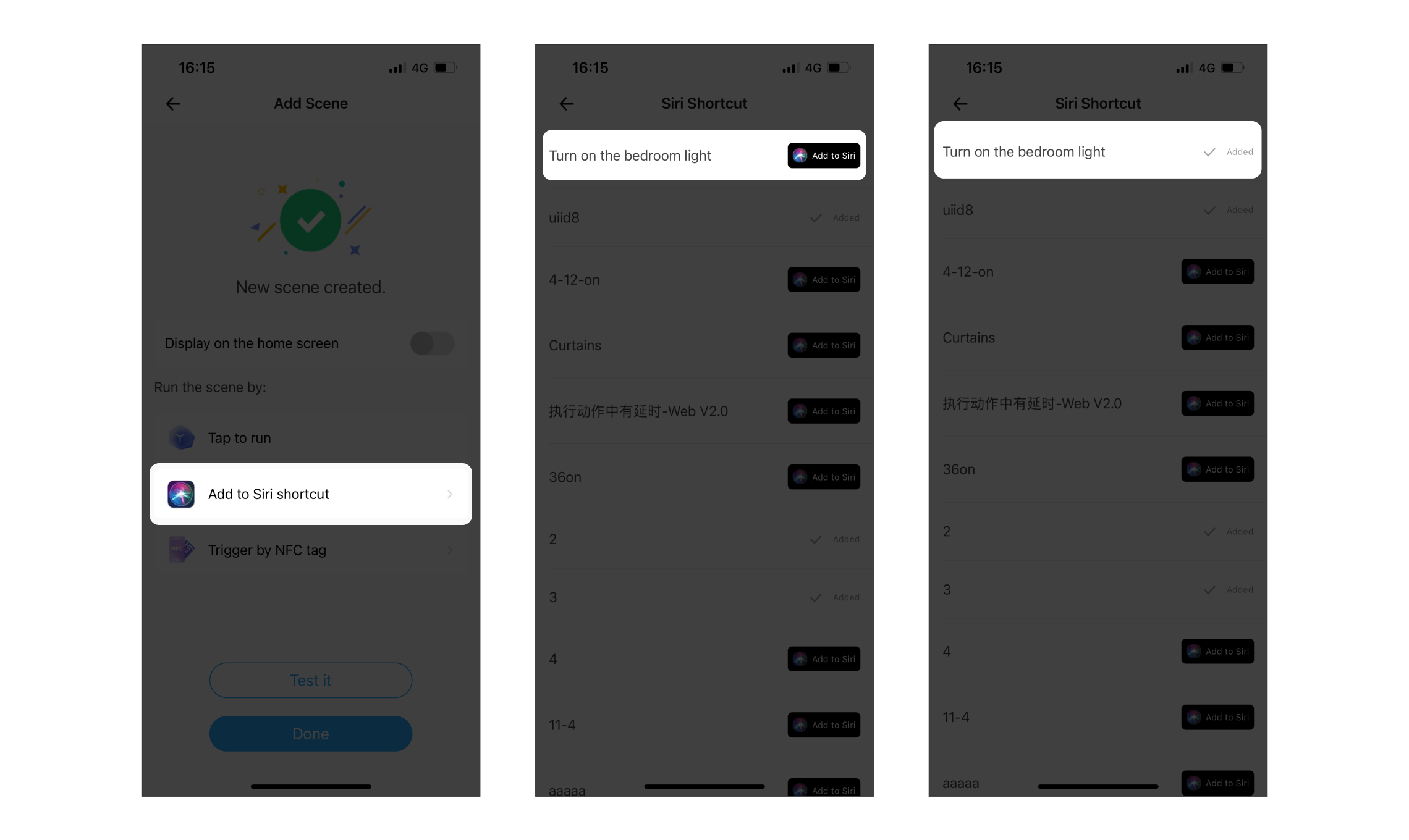
Once the scene shows “Added,” you can run it by saying:
“Hey Siri, turn on the bedroom light.”
Option 2: Add Existing Scenes to Siri
Already have manual scenes set up? You can add them to Siri from one place.
In the eWeLink app, go to Scene > Add to Siri. On the Siri Shortcut page, find the scene you want and tap Add to Siri.
Once it shows Added, you can say the shortcut phrase to Siri to run the scene.
Adding eWeLink manual scenes to Siri is a simple way to make your smart home easier to control. Instead of opening the app and adjusting devices one by one, you can run your most-used scenes with one phrase.
From leaving home to starting movie time, Siri helps turn everyday smart home routines into faster, smoother actions.
What important features are we missing? We’d love to hear from you! Join our discussion here.
Make your home look lived-in and stay connected while you’re away.
Discover how eWeLink LAN Control enables local control of compatible devices.
Check on your pets and manage your home remotely while away.
Discover how to control, schedule, and automate your lights with eWeLink for a smarter, more comfortable home.