Matter with eWeLink: Supported Devices, Setup, and Pairing Tips
See which Matter devices work with eWeLink and how to set them up.

Smart home automations rely on stable devices. When you replace or delete a device, connected automations may break. eWeLink marks affected scenes as Invalid in red, helping you spot issues instantly. You don’t need to rebuild these scenes from scratch. In this article, we’ll walk you through how to identify these affected scenes and understand their impact, so you can quickly review, replace, or reactivate them.
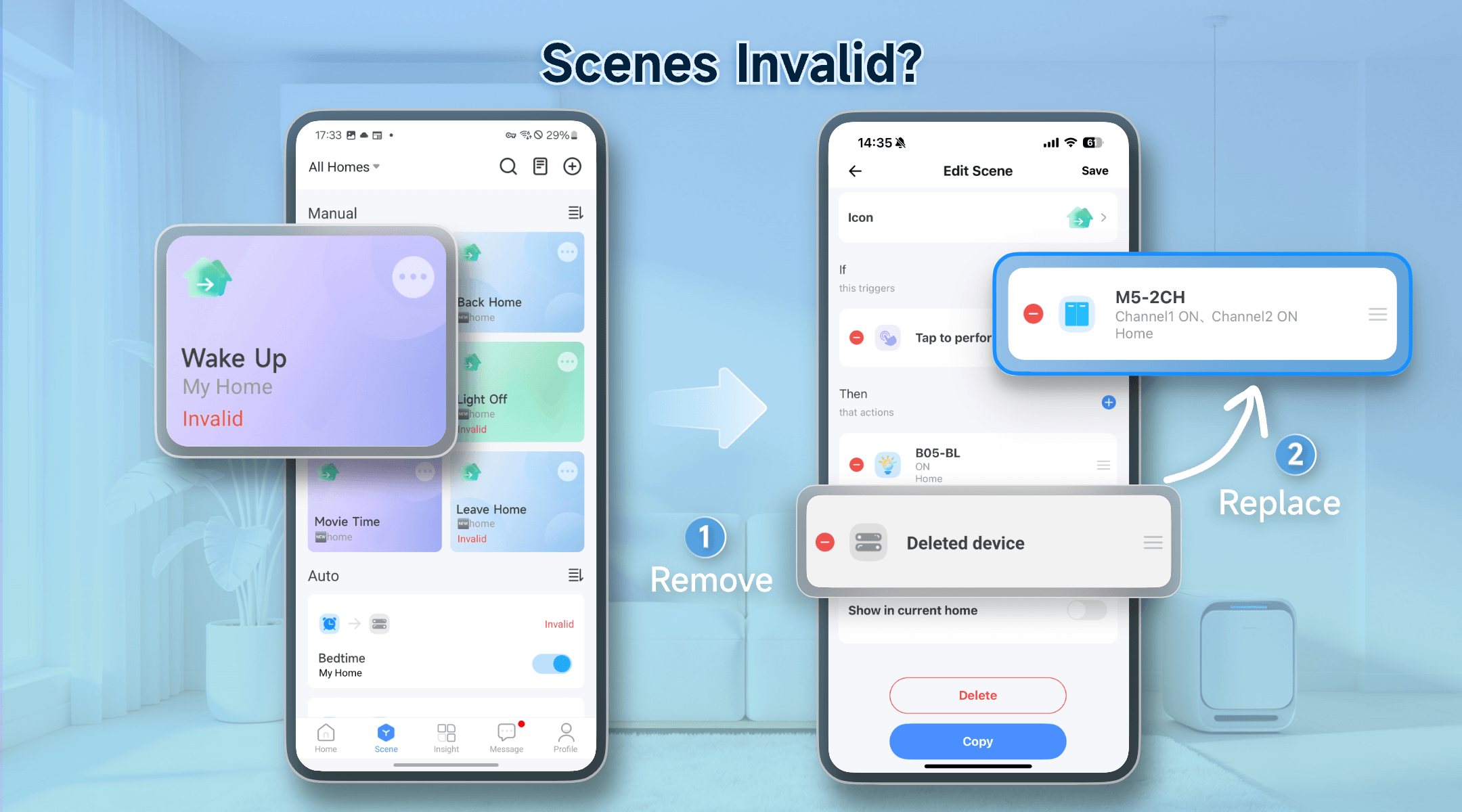
Every smart scene relies on a delicate chain of triggers and actions. When a related device is deleted, that logic chain breaks, prompting eWeLink to mark the scene as “Invalid”.
However, a deleted device doesn’t necessarily mean your entire scene will fail. The actual impact depends on how the scene was configured:
If you manage multiple automations, here is how to identify and troubleshoot them:
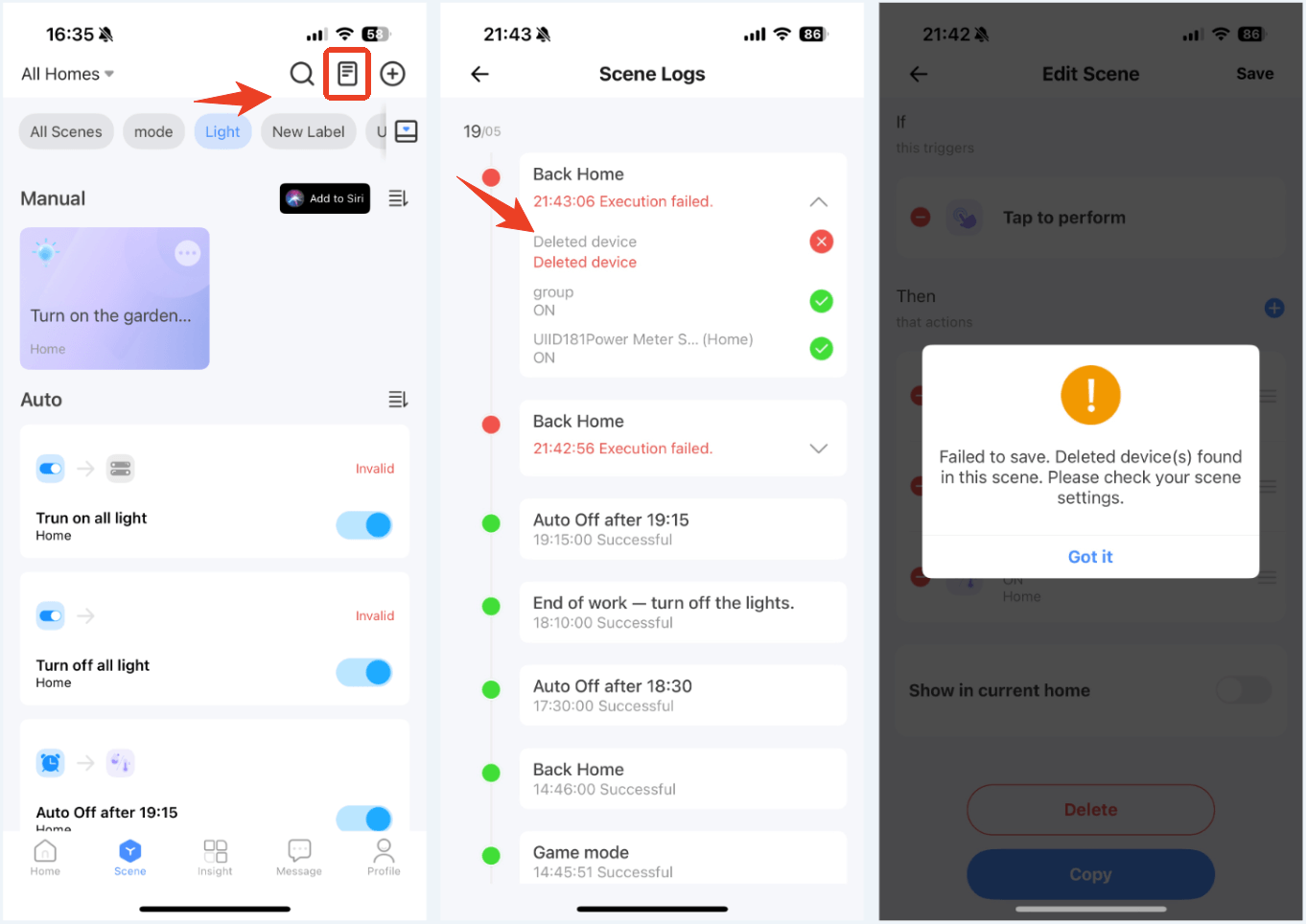
Once you have identified the broken scenes, instead of rebuilding repeatedly, the solution depends on whether the device was removed by mistake or if you intended to replace it.
If you accidentally deleted a device, you don’t need to rebuild your scenes from scratch.
If you have upgraded your hardware or removed a device intentionally, you can update your scene to keep it running.
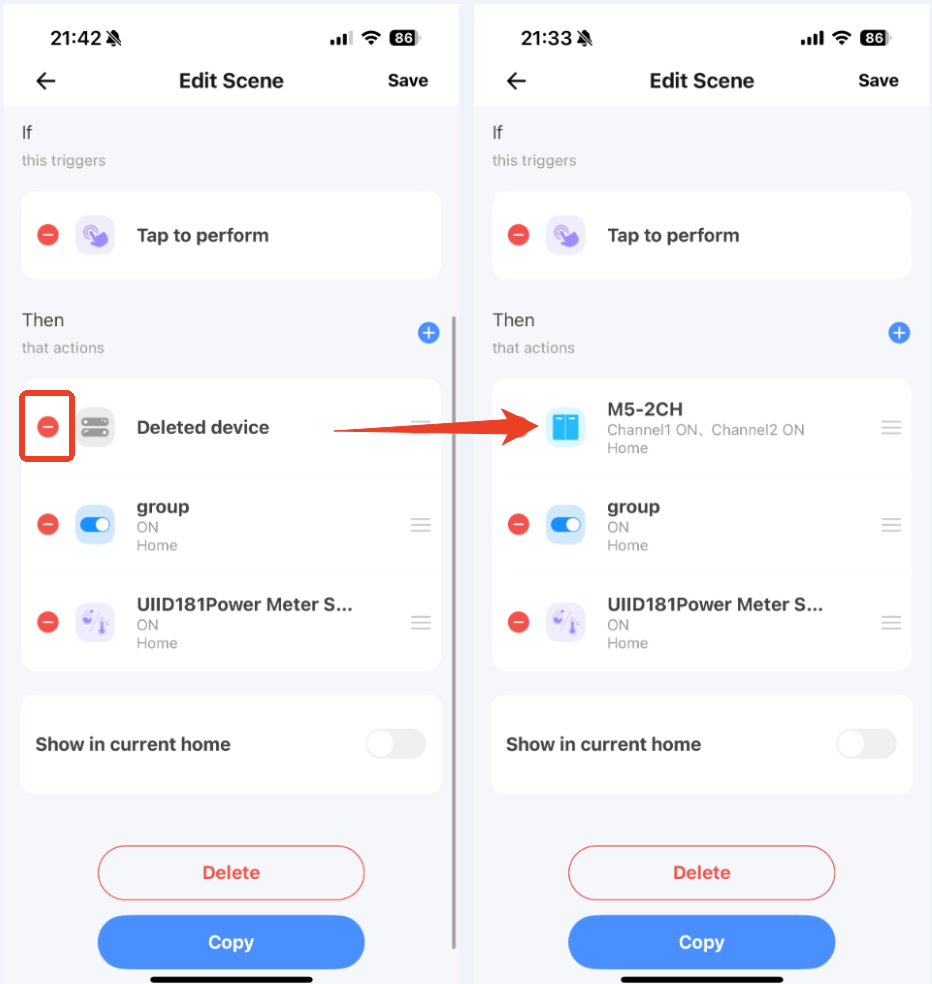
Think of an Invalid mark as a helpful health check, which timely alerts you to the spot that needs a quick update. By making simple edits, you ensure your automations remain as responsive and reliable as the day you created them.
What important features are we missing? We’d love to hear from you! Join our discussion here.
See which Matter devices work with eWeLink and how to set them up.
Manage devices faster from the eWeLink Home page.
Run your favorite eWeLink manual scenes with Siri voice commands on your iPhone.
Set a duration to confirm device state and run scenes reliably.