Matter with eWeLink: Supported Devices, Setup, and Pairing Tips
See which Matter devices work with eWeLink and how to set them up.

As your smart home ecosystem grows, so does the complexity of your automation. What began with a few simple scenes, like “Lights OFF” or “Switch OFF”, can quickly evolve into dozens of automations spanning “Morning Routines” and “Security Alerts”.
If you find yourself scrolling endlessly through a crowded list to find the right scene, you aren’t alone. Today, we’re showing you how to turn that chaos into clarity with Custom Labels.
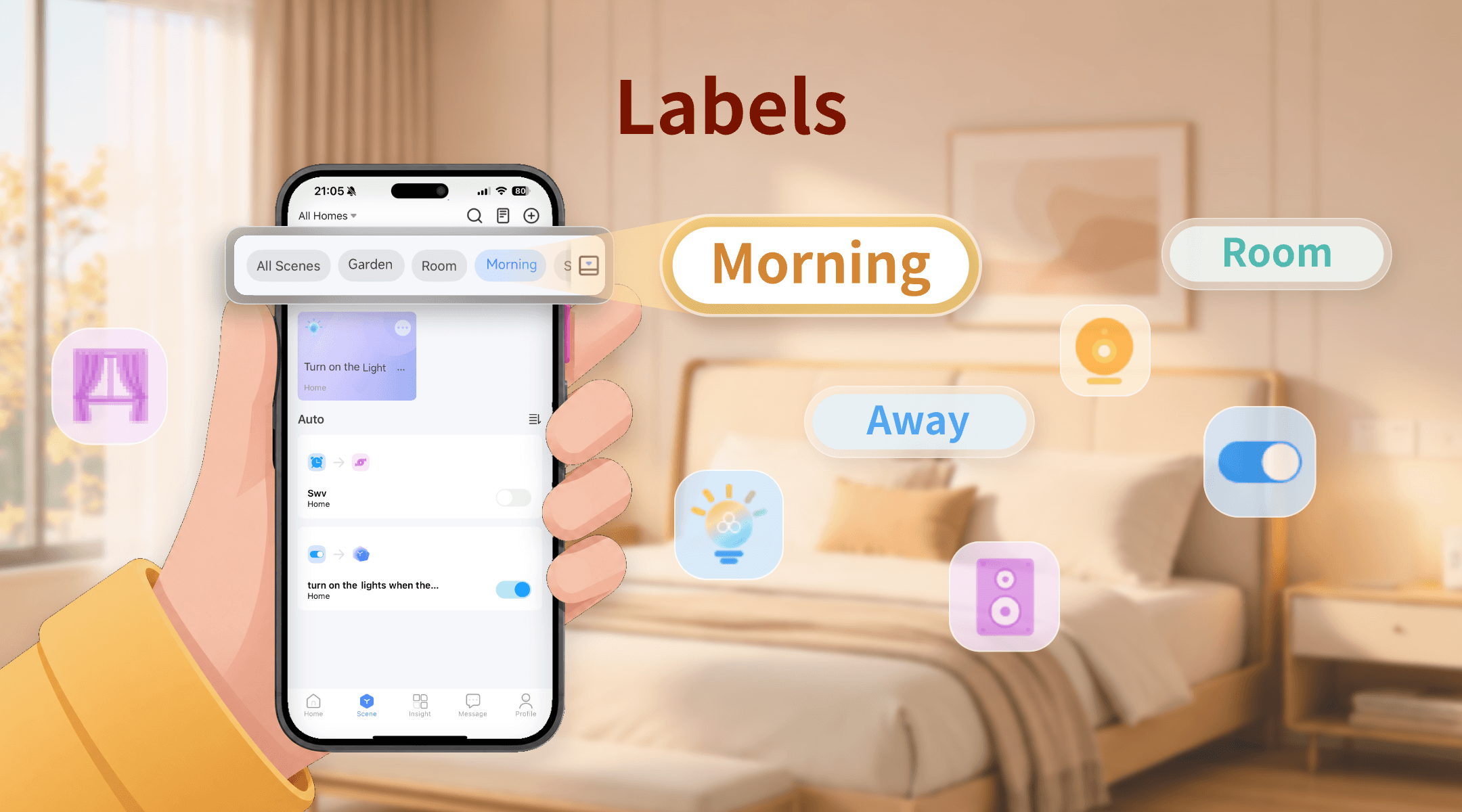
Labeling your scenes is a straightforward way to stay organized.
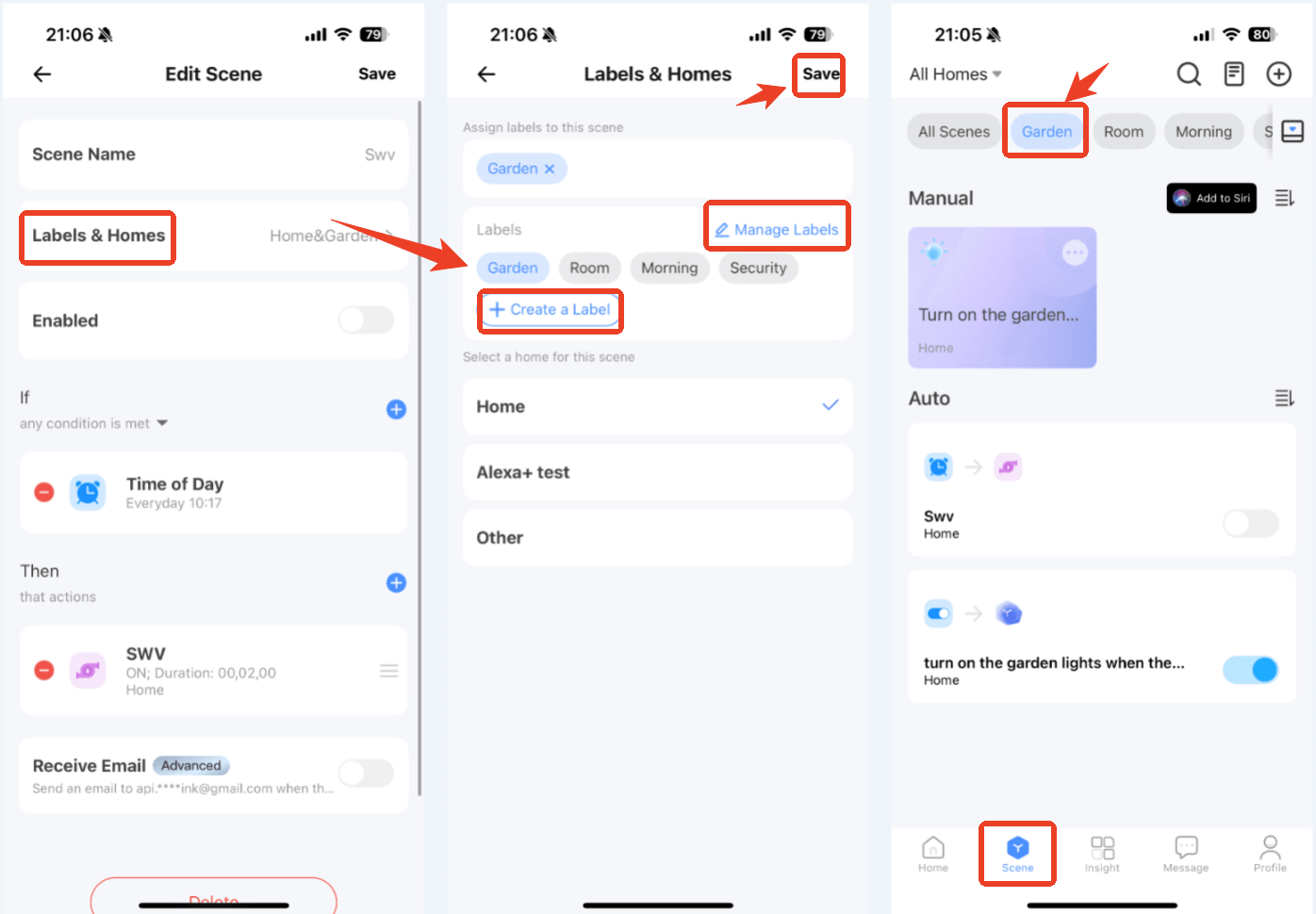
Tip: One scene can belong to multiple labels. For instance, a “Porch Light” scene could be tagged under both “Daily” and “Security.”
Once you’ve added labels, a convenient, sticky label bar appears at the top of your scene homepage for instant filtering.
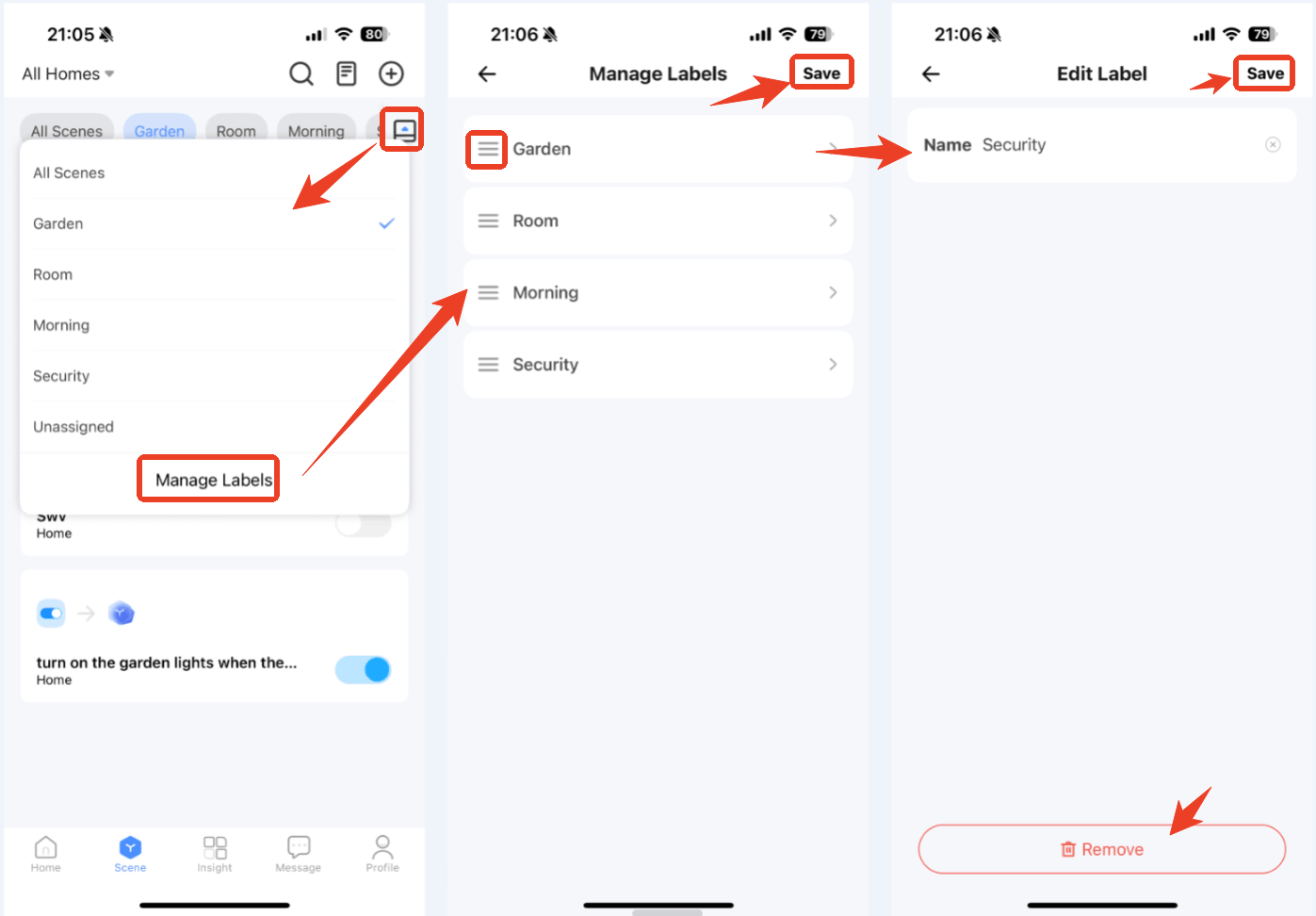
To manage your labels, tap the menu icon on the right side of the label bar and select Manage Labels. In this screen, you can:
Not sure how to structure your labels? Here are some effective strategies to keep your smart scenes screen cleaner:
If you have a long list of unlabeled automations, simply tap the “Unassigned” filter in your label bar. This will highlight every scene you haven’t organized yet, making it easy to tidy up your workspace in one go.
Scene duplication makes it easier to build similar automations without starting from scratch. In the eWeLink app, you can open an existing scene, scroll to the bottom of the edit screen, and tap Copy to replicate as a new scene for another room, device group, or routine.
While this is an efficient way to expand your smart home setup, frequent use can lead to a crowded list.
To keep your scenes organized, make it a habit to assign a specific label immediately after creating a new copy. This simple step ensures your scene list remains tidy and easy to navigate as your automation ecosystem grows.
Smart home management is about more than just setting up devices; it’s about control and accessibility. With Custom Labels, we’re making sure that as your home gets smarter, your management process gets simpler.
Start labeling today and experience a cleaner, faster way to manage your home!
Have a favorite way to label your scenes? Share your setup with our community.
What important features are we missing? We’d love to hear from you! Join our discussion here.
See which Matter devices work with eWeLink and how to set them up.
Manage devices faster from the eWeLink Home page.
Run your favorite eWeLink manual scenes with Siri voice commands on your iPhone.
Set a duration to confirm device state and run scenes reliably.