Going Away? Make Your Home Look Lived-In with eWeLink
Make your home look lived-in and stay connected while you’re away.

Simulate everyday activity, check your connected devices remotely, and prepare your smart home before you leave.
Whether you’re heading out for a weekend or taking a longer trip, leaving your home unattended can raise a few concerns. Will the house look empty at night? Did you leave a light on? Can you check in on your home while you’re away?
With eWeLink, you can use Presence Simulation to make your home appear occupied while you’re away, then use compatible remote monitoring features to check on your home when needed.
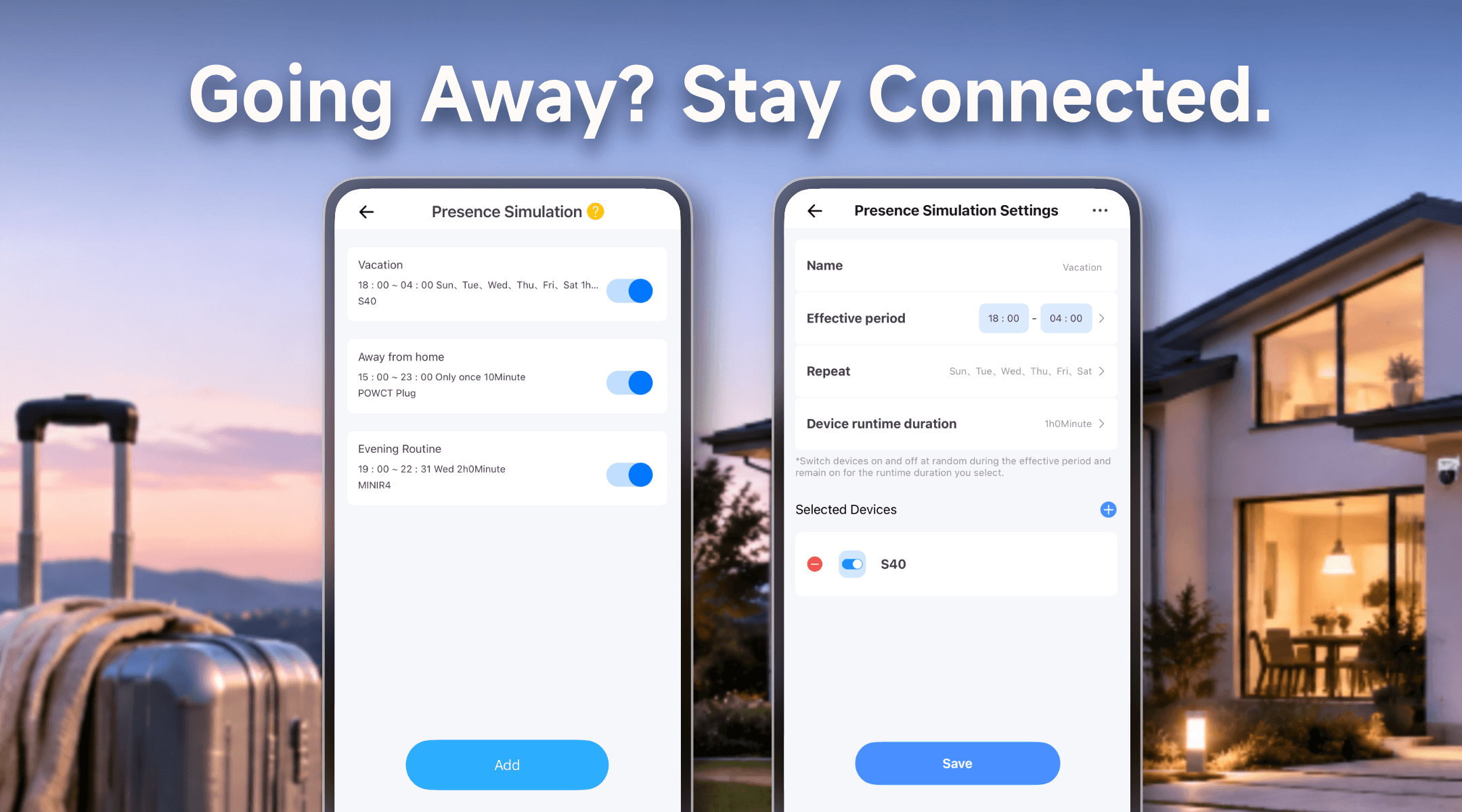
A home that stays dark and inactive every evening can appear unoccupied. Instead of relying on a fixed lighting schedule, eWeLink’s Presence Simulation can randomly turn compatible devices on and off during selected times, creating the impression of everyday activity.
Step 1: Open Presence Simulation
Open the eWeLink app and go to Insight > Presence Simulation. Tap Add to create a new simulation schedule.
Step 2: Set the active period
Give your schedule a name, then choose when the simulation should run.
For example, you could set it to run from 6:00 PM to 11:00 PM to simulate evening activity.
Step 3: Choose when it repeats
Select the days on which the simulation should run. Choose the appropriate repetition pattern for your trip and routine.
Step 4: Select devices and set their runtime
Choose the compatible lights or other eligible devices you want to include, and configure how long they should remain on according to the available settings.
For example, you could include living room lights and bedroom lights to create a more natural pattern of activity across your home.
Step 5: Save and check your settings
Save the settings and review the configuration before leaving. Make sure the selected devices are powered, connected, and ready to respond.
Presence simulation helps create the impression that someone is home, but it doesn’t tell you everything that’s happening inside your house. eWeLink also offers features that can help you check on compatible connected devices remotely.
Open Insight > Devices On to see eligible devices that are currently switched on.
This can help you review the status of connected lights, plugs, and other supported devices while you’re away. If something is still on when it shouldn’t be, you can check its device page and turn it off remotely when supported.
If you have compatible cameras connected to eWeLink, use Camera Live View in Insight to view supported camera feeds in one place.
You can check your home’s visible surroundings without opening each camera’s device page individually.
A few simple checks can help your smart home run as expected throughout your trip.
Check your automations. Review any schedules and smart scenes that will run while you’re away. Make sure they won’t conflict with your presence simulation settings or activate devices unnecessarily.
Turn off what you don’t need. Switch off nonessential lights and appliances before leaving, while keeping devices that need continuous power running. Check the device status in the app where available.
Check your network and devices. Make sure your router, compatible smart devices, and cameras have stable power and connectivity. Remote control and monitoring may be unavailable if the relevant devices or network connection go offline.
Use automation safely. Presence simulation is best suited to lights and other appropriate devices. Avoid using it to switch on heaters, cooking appliances, or other equipment that should not run unattended.
Keep your security measures in place. Lock doors and windows before leaving, and use any existing security system as intended. Simulated activity can help make your home appear occupied, but it cannot guarantee protection against intrusion.
A little preparation can make leaving home easier. Set up Presence Simulation to create a more natural pattern of activity, review your automations, and make sure your devices are ready to run as expected.
While you’re away, features such as Devices On and Camera Live View can help you check the status of compatible devices and view supported camera feeds remotely.
With your smart home prepared in advance, you can make your home appear lived-in while you’re away and stay connected to your home without needing to be there in person.
What important features are we missing? We’d love to hear from you! Join our discussion here.
Make your home look lived-in and stay connected while you’re away.
Discover how eWeLink LAN Control enables local control of compatible devices.
Check on your pets and manage your home remotely while away.
Discover how to control, schedule, and automate your lights with eWeLink for a smarter, more comfortable home.