How to Build a Smarter Backyard Chicken Coop with eWeLink
Keep a closer eye on your backyard coop with eWeLink through smart monitoring, alerts, and remote viewing.

You set up a scene, but when the expected time or device event came, nothing happened.
In most cases, the problem comes down to the device connection, the trigger or conditions, the effective period, or another automation affecting the result.
Here are the most common causes and what to check.
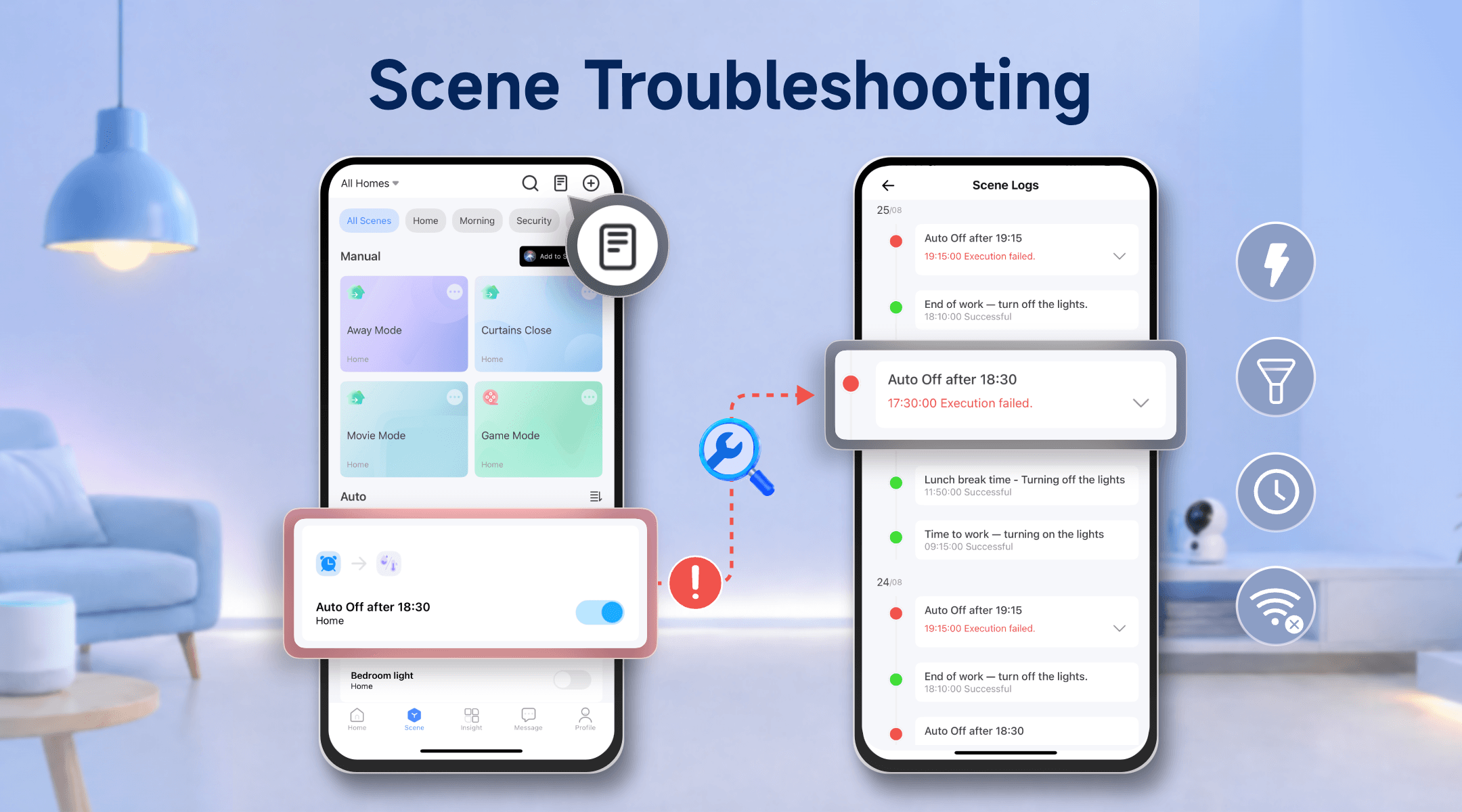
A scene depends on the devices involved being available when they are needed.
If a trigger device is offline, it may not be able to report the status change needed to trigger the scene. If an action device is offline, the scene may run but the device may not be able to carry out the action.
For Zigbee or other hub-connected devices, check the hub or gateway as well. If the hub is offline, its connected devices may not be able to report status changes or respond to commands.
Open the eWeLink app and make sure the devices involved in the scene are online.
Try controlling the action device manually from the app. If manual control also fails, check the device connection first.
If a device is offline or keeps going offline:
If your devices are online and the scene settings look correct, but the scene still doesn’t run, check the scene’s effective period.
An effective period defines when a scene can respond to trigger events. It does not trigger the scene by itself.
If the trigger condition was already true before the Effective Period started, the scene will not run automatically when the Effective Period begins. The device needs to report a new qualifying change after the effective period starts.
For example:
If: Temperature is above 30°C
Then: Turn on the fan.
Effective Period: 10:00 AM–1:00 PM
If you save the scene at 10:30 AM
The temperature is already 31°C.
Because the scene is saved within its effective period and the condition is already met, the scene will run immediately after you save it.
If you save the scene at 9:59 AM
The temperature is already 31°C, but the effective period has not started yet.
When the effective period begins at 10:00 AM, the scene will not automatically run just because the temperature is still 31°C. Starting an effective period does not re-check an already existing device state.
The scene waits for a new qualifying device update during the effective period.
The same principle applies to other device-based triggers. For example, leaving a door open does not continuously trigger a scene configured for “Door opens.” A new device event is needed.
If you want the scene to run at a specific time, such as exactly 10:00 AM, use Time of Day as the trigger. An effective period only defines when a scene is allowed to run; it does not trigger the scene at a specific time.
If a time-based scene runs earlier or later than expected, the time zone selected in eWeLink may not match your current location.
This can affect Time of Day triggers and Effective Periods, causing scenes to run at a different local time than expected.
Go to Profile > Settings > Time Zone in the eWeLink app and make sure the selected time zone matches your current location, especially if you recently moved or changed regions.
A scene can contain multiple conditions using All or Any logic.
With All, every required condition must be satisfied for the scene to run.
With Any, the scene can run when any one of the configured conditions is met.
For example:
If All:
Then: Turn the light ON.
If motion is detected while the light is already ON, the scene will not run because the Light is OFF condition is not satisfied.
A disabled auto scene will not run, even if its conditions are met.
Open the Scene in the eWeLink App and make sure the auto scene is enabled.
Also check whether another scene is configured to enable or disable it. If so, make sure that scene has not disabled the auto scene you are troubleshooting.
More than one automation may be controlling the same device.
For example:
Scene A: At 10:00 PM → Turn the living room light OFF.
Scene B: At 10:00 PM → Turn the living room light ON.
If different scenes, schedules, timers, or third-party automations send different commands to the same device around the same time, the final device state may not match what you expected.
Review any other automations that control the same device, including:
Pay particular attention to automations that control the same device at similar times.
To prevent automation loops, eWeLink does not treat a device state change caused by a scene action as a new trigger for another scene.
For example:
Scene 1
If: Light A turns ON
Then: Turn Light B OFF.
Scene 2
If: Light B turns OFF
Then: Turn Light C ON.
When Light A turns on, Scene 1 turns Light B off. However, because Light B was turned off by a scene action, that change will not trigger Scene 2.
As a result, Light C will not turn on.
If you want several actions to happen from the same trigger, add them to the same scene:
If: Light A turns ON
Then:
If a scene used to work but recently stopped, check whether anything in its setup has changed.
Open the scene and verify that the following settings are still configured correctly:
This is especially important if a device was removed and added again, replaced with another one, or the scene settings were changed after the scene was created.
Also make sure you are using the latest available version of the eWeLink app and check whether firmware updates are available for the devices involved.
Logs can help you narrow down what happened.
Scene Logs
Use scene logs to check whether the scene execution was recorded as successful or failed.
If the scene shows as failed, check the devices involved, their connection status, and the scene configuration.
If the Scene Log shows a successful execution but the device is later in a different state, check the Device Logs and other automations that may have controlled the device afterward.
Device Logs
Use the corresponding device logs, when available, to check device events and status changes.
For example, if a motion-triggered scene did not run, check the motion sensor’s Device Logs to see whether the expected motion event was reported.
Together, scene logs and device logs can help you determine whether the issue is related to the device event, scene execution, or another automation changing the device afterward.
When a scene doesn’t run as expected, check:
If the devices are online, manually controllable, and the scene settings appear correct, try deleting and recreating the scene.
If the issue continues, submit feedback through the eWeLink App and provide as much relevant information as possible, including:
These details can help narrow down whether the issue is related to the device event, scene configuration, scene execution, or device response.
What important features are we missing? We’d love to hear from you! Join our discussion here.
Keep a closer eye on your backyard coop with eWeLink through smart monitoring, alerts, and remote viewing.
Simplify aquarium care with eWeLink through smart schedules, monitoring, alerts, and remote viewing.
Monitor electricity usage, compare trends, and identify high-consumption devices with the eWeLink Energy Dashboard.
Find out why your scenes don’t run and how to fix common automation issues.