Matter with eWeLink: Supported Devices, Setup, and Pairing Tips
See which Matter devices work with eWeLink and how to set them up.

Smart home control should feel instant. With eWeLink iOS widgets, your most-used devices and scenes can stay right on your iPhone home screen, so you can check status, turn devices on or off, or run daily routines without opening the app every time.
Whether you want a quick shortcut for a bedtime scene, a home screen panel for your favorite lights, or a simple way to check sensors at a glance, eWeLink widgets help bring everyday smart home actions closer to you.
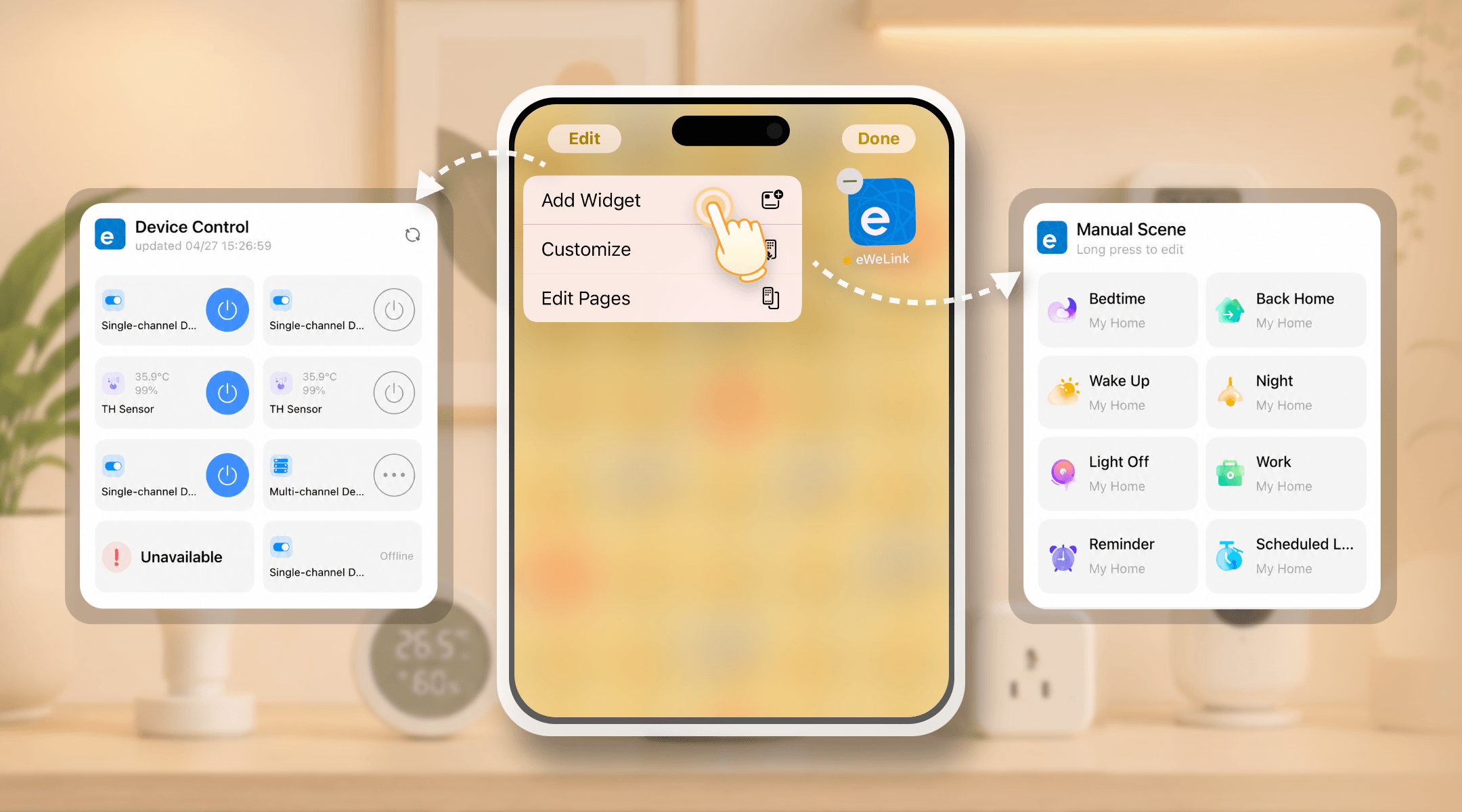
eWeLink offers two types of iOS Home Screen widgets for iOS 17 or later, helping you keep your most-used smart home controls just a tap away.
The Manual Scene Widget lets you place your favorite manual scenes on the home screen. With one tap, you can run scenes such as Good Morning, Movie Time, Leave Home, or Good Night.
This is especially useful for routines that involve multiple devices. Instead of adjusting lights, curtains, plugs, and switches one by one, you can start the whole setup from a single widget.
The Device Control Widget gives you quick access to individual devices. Depending on the device type, you can turn devices on or off, view their current status, or jump directly to the device control page in the eWeLink app.
Supported device types include plugs, switches, motorized curtains, lights, temperature and humidity sensors, door sensors, motion sensors, door/window sensors, water leak sensors, thermostatic radiator valves, water valves, and more.
Both widget types support 2×2, 4×2, and 4×4 sizes on iOS 17 or later.
A smaller widget is great for one or two essential controls, while a larger widget works better if you want to group several devices or scenes together. You can build a compact shortcut area or a more complete smart home control panel, depending on how you use your iPhone home screen.
Your morning routine may include opening the curtains, turning on the bedroom light, checking the room temperature, and powering on the coffee maker. With eWeLink widgets, you can keep these controls on your home screen and handle them before you even open the app.
For example, a Good Morning scene can open the curtains, turn on selected lights, and start your plug-connected appliance. Or, if you prefer more manual control, you can place the curtain, light, temperature sensor, and plug in a Device Control Widget for quick access.
When you are preparing dinner, you may need to turn on the kitchen light, start a fan, or check whether a smart plug is powered on. Instead of unlocking your phone, opening eWeLink, and searching for each device, you can tap the widget directly from your home screen.
A kitchen-focused widget can include your light, fan, plug, and temperature sensor, making common actions easier while you are cooking.
Before heading out, many smart home users want to make sure lights are off, curtains are closed, and key devices are powered down. A Manual Scene Widget is ideal for this.
You can create a Leave Home scene and place it on your home screen. One tap can turn off selected lights, switch off plugs, close curtains, and prepare your home while you are on your way out.
At bedtime, you may want to dim the lights, close the curtains, turn off the living room devices, and keep only essential devices running. Instead of adjusting everything separately, add a Good Night scene to your Manual Scene Widget.
This makes your nighttime routine feel smoother and more consistent, especially when multiple rooms or devices are involved.
Widgets are not only for turning things on and off. They are also useful for checking device status at a glance.
You can place sensors such as temperature and humidity sensors, door/window sensors, motion sensors, or water leak sensors in a widget to make important home information easier to access. For example, you can quickly check whether a window is open, whether motion has been detected, or whether a water leak sensor needs attention.
eWeLink iOS widgets make everyday smart home control faster and more personal. Instead of opening the app for every small action, you can keep the devices and scenes you use most right where you need them.
From morning routines to bedtime scenes, from kitchen controls to home security checks, widgets help turn your iPhone home screen into a simple, convenient smart home control center.
What important features are we missing? We’d love to hear from you! Join our discussion here.
See which Matter devices work with eWeLink and how to set them up.
Manage devices faster from the eWeLink Home page.
Run your favorite eWeLink manual scenes with Siri voice commands on your iPhone.
Set a duration to confirm device state and run scenes reliably.