Matter with eWeLink: Supported Devices, Setup, and Pairing Tips
See which Matter devices work with eWeLink and how to set them up.

Google Home Device Sync lets you sync and control supported Google Home Matter devices directly in the eWeLink app. Powered by Google Home APIs, this feature integrates devices from the Google Home Matter fabric into eWeLink, giving you another way to manage your smart home without switching between apps.
Once your Google Home household is linked, eWeLink can display its home and room structure, along with supported Matter devices that are already part of your Google Home setup. You can then control these synced devices directly in the eWeLink app without resetting, re-pairing, or adding them again from scratch.
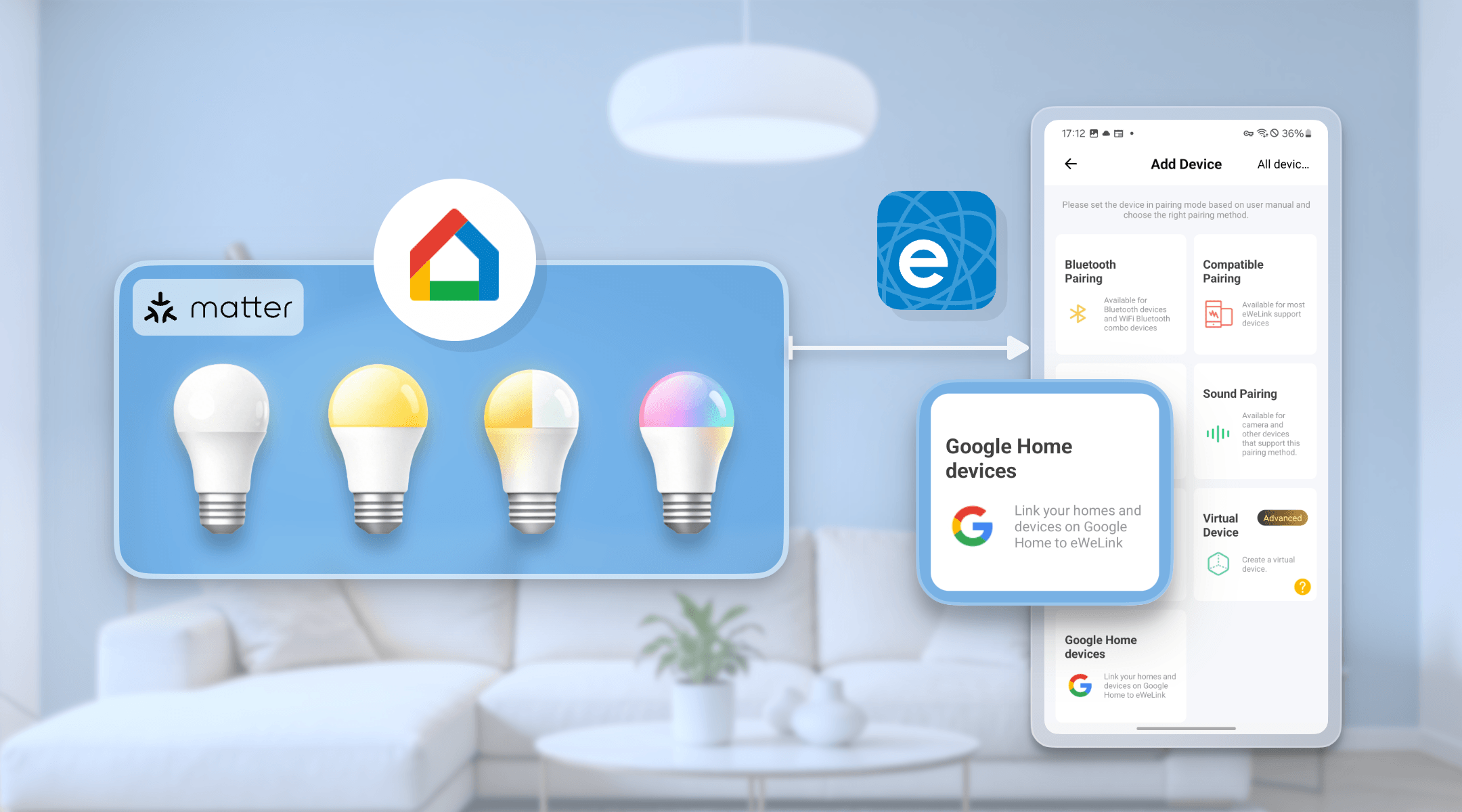
Google Home Device Sync is currently available on Android devices.
To use this feature properly, your Android phone must be able to run Google Play services normally. If Google Play services are unavailable, restricted, or not working correctly on your device, Google Home Device Sync may not work as expected in eWeLink.
After linking your Google account, your Google Home household can appear in the eWeLink app with its existing home names, room names, and supported device names.
For example, if a Matter light is placed in the bedroom in Google Home, it will appear under the same household and room structure in eWeLink after syncing.
Once synced, supported Matter devices from Google Home can be controlled directly in the eWeLink app. This gives you more flexibility if you use Google Home for voice control and eWeLink for daily device management, scenes, or centralized control.
Current support focuses on Matter-light devices, including:
You can also add new supported Matter devices through a synced Google Home household in eWeLink. Simply scan the Matter QR code or enter the pairing code in the app.
After setup, the device can appear in both eWeLink and Google Home, helping you avoid repeated setup across platforms.
If you have more than one Google Home household, link them one at a time.
After syncing, you can manage the linked household in eWeLink, including moving supported devices between rooms within the synced household or removing a linked household when it is no longer needed.
To access all currently supported device types, please update the eWeLink app to V5.20 or later.
Google Home Device Sync is designed for users who already use Google Home but also want more control inside eWeLink.
Instead of switching between apps for different devices, you can manage supported Google Home Matter devices alongside your eWeLink-supported devices. Whether you are turning lights on and off, adjusting brightness, or changing colors, the experience becomes more unified and convenient.
What important features are we missing? We’d love to hear from you! Join our discussion here.
See which Matter devices work with eWeLink and how to set them up.
Manage devices faster from the eWeLink Home page.
Run your favorite eWeLink manual scenes with Siri voice commands on your iPhone.
Set a duration to confirm device state and run scenes reliably.