
Floor Plan in eWeLink WEB V3.26.0: Build and Manage Your Home Map
Create a Home Map and control devices from a visual floor plan.
Table of Contents
Managing smart devices becomes easier when you can see your entire home at a glance. With eWeLink WEB V3.26.0, we’ve simplified the Floor Plan creation process with new built-in guidance, visual tool demonstrations, and a smoother editing workflow.
Whether you’re managing a small apartment or a multi-story house, Home Map makes it easier to view device status and control devices from one place.
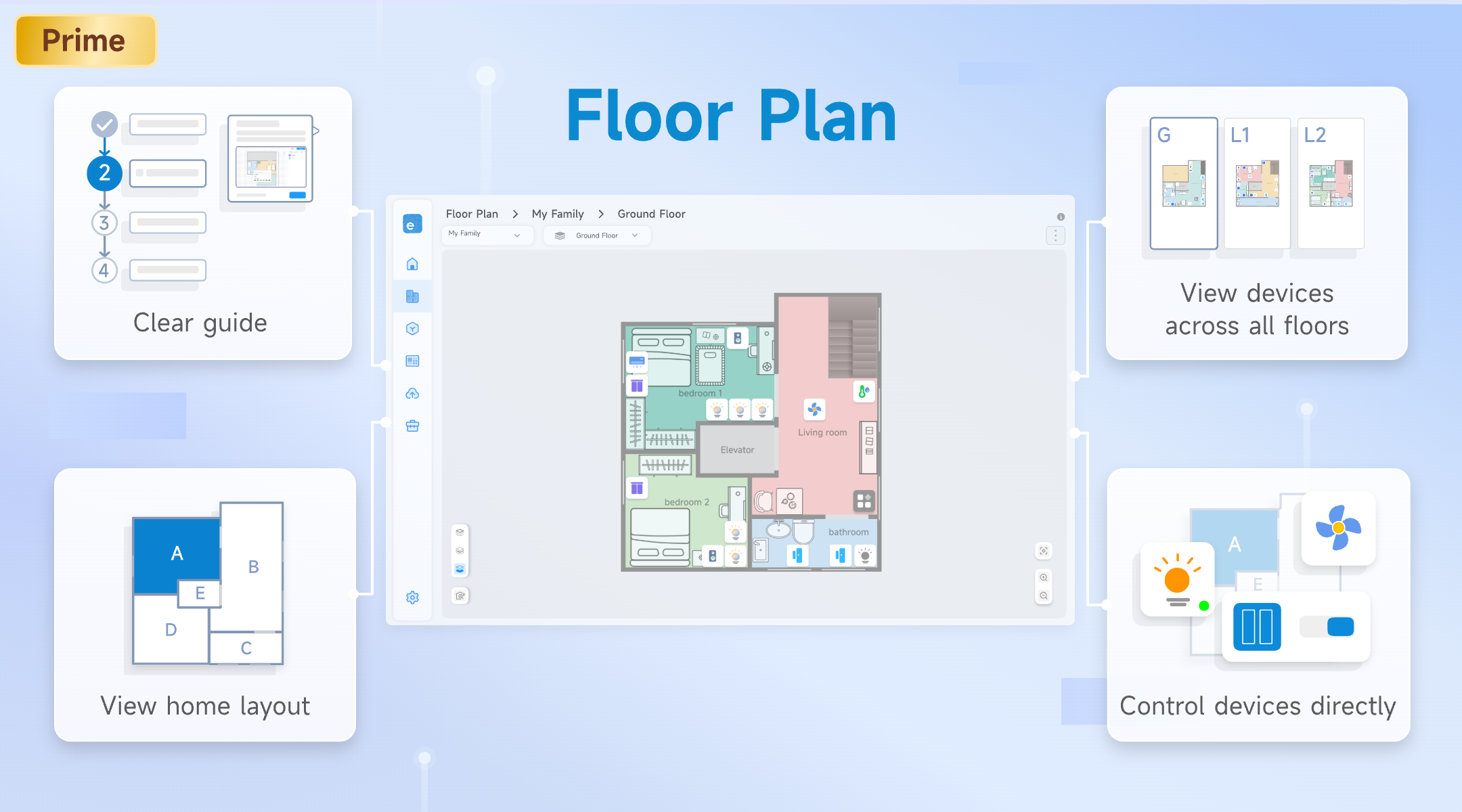
Create a Home Map That Matches Your Home
Floor Plan allows you to create a digital version of your home using built-in drawing tools.
You can draw walls, rooms, doors, and windows to create a layout that reflects your actual living space. Whether you prefer to start with the overall structure or build room by room, Floor Plan provides a flexible way to design your home.
You can also customize rooms with names and colors, then add furniture, appliances, and decorative objects to make the map feel more familiar and easier to navigate.
New built-in guidance and visual tool demos help simplify the process, making it easier than ever to create your own Home Map.
See Your Smart Home at a Glance
Once your floor plan is ready, you can place smart devices directly onto the map.
Instead of searching through room lists, devices appear where they are actually installed, making it easier to understand the layout of your smart home.
This becomes especially useful as the number of devices grows. Lights, plugs, switches, curtains, and sensors can all be organized according to their real locations, helping you quickly identify the devices you’re looking for.
For homes with multiple floors, Home Map provides a more intuitive overview than traditional device lists, allowing you to see device distribution across your entire property.
Control Devices Where They Are
Home Map is more than a visual layout—it’s also a smart home control center.
Device icons display real-time status directly on the map, making it easy to see whether devices are on, off, or offline.
When you want to take action, simply click a device icon to open its control panel.
Instead of navigating through multiple menus to find a specific device, you can monitor and control devices directly from the place where they are located.
Why Use a Home Map?
Find Devices Faster
As smart homes grow, finding a specific device can take time more than expected.
With Home Map, you can locate devices based on where they are installed rather than where they appear in a list, making everyday management more intuitive.
See Your Home at a Glance
Sometimes you don’t need to control a device—you simply want to know what’s happening throughout your home.
Home Map provides a visual overview of device locations and status, helping you quickly identify active, inactive, or offline devices.
Manage Multiple Floors More Easily
For multi-story homes, devices are often spread across different rooms and floors.
Instead of switching between room lists, Home Map lets you view the layout of your home more naturally, making it easier to monitor and manage devices across the entire property.
How to Create a Home Map
Getting started with Floor Plan is simple:
- Open Floor Plan in eWeLink Web.
- Click Add Home Map and select a home.
- Draw your floor plan using the built-in tools with clear guide.
- Customize rooms and place interior elements.
- Arrange devices according to their actual locations.
- Save your layout to generate the Home Map.
Once complete, you can zoom, navigate, monitor device status, and control devices directly from the map.
Need more guidance? Check out How to Create a Floor Plan for detailed instructions, tips, and best practices.
A More Visual Way to Manage Your Smart Home
Floor Plan transforms smart home management from a list-based experience into a visual one.
By combining floor plan creation, device organization, and real-time control, Home Map helps you understand your smart home more clearly and manage devices more efficiently.
Whether you’re managing a handful of devices or an entire multi-floor smart home, Floor Plan brings everything together in one place.
Share the Post:
Related Posts
Your Smart Home, Now on Your Wrist: eWeLink Arrives on Wear OS
eWeLink App V5.21 brings smart home control to your Wear OS watch.
eWeLink on Android Auto
The latest version of the eWeLink app (Android v5.7) has just introduced exciting new integration with Android Auto, empowering you to control your connected home devices right from your vehicle’s center display!
eWeLink on Apple CarPlay – Seamless smart home control on the road
The latest version of the eWeLink app (iOS v5.4.1) has just introduced exciting new integration with CarPlay, empowering you to control your connected home devices right from your vehicle’s center display!