A Comprehensive Guide to eWeLink Virtual Devices
Bridge smart home platforms and trigger entire scenes across ecosystems with a single virtual switch or button.

Keeping an eye on your home shouldn’t feel complicated. Whether you’re checking your front door, your pets, or just making sure everything’s in order, quick access matters.
Camera Live View brings real-time monitoring and instant device control together on a single screen. Imagine noticing unusual movement in your backyard at night. You need to trigger a siren or floodlight immediately, but exiting the live feed to find the right switch in a long device list costs you precious seconds. Camera Live View eliminates this “screen hopping,” keeping you in control when every second counts.
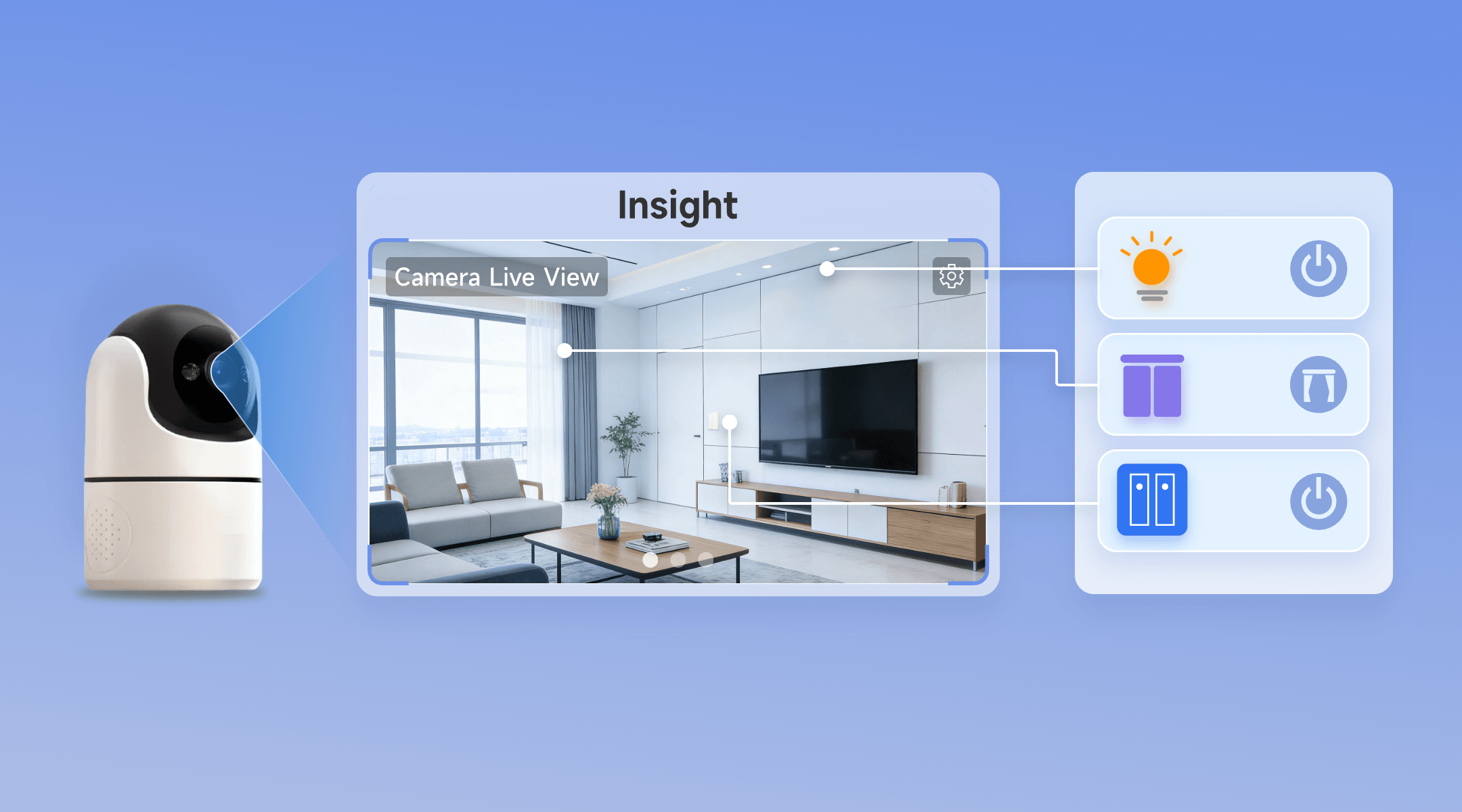
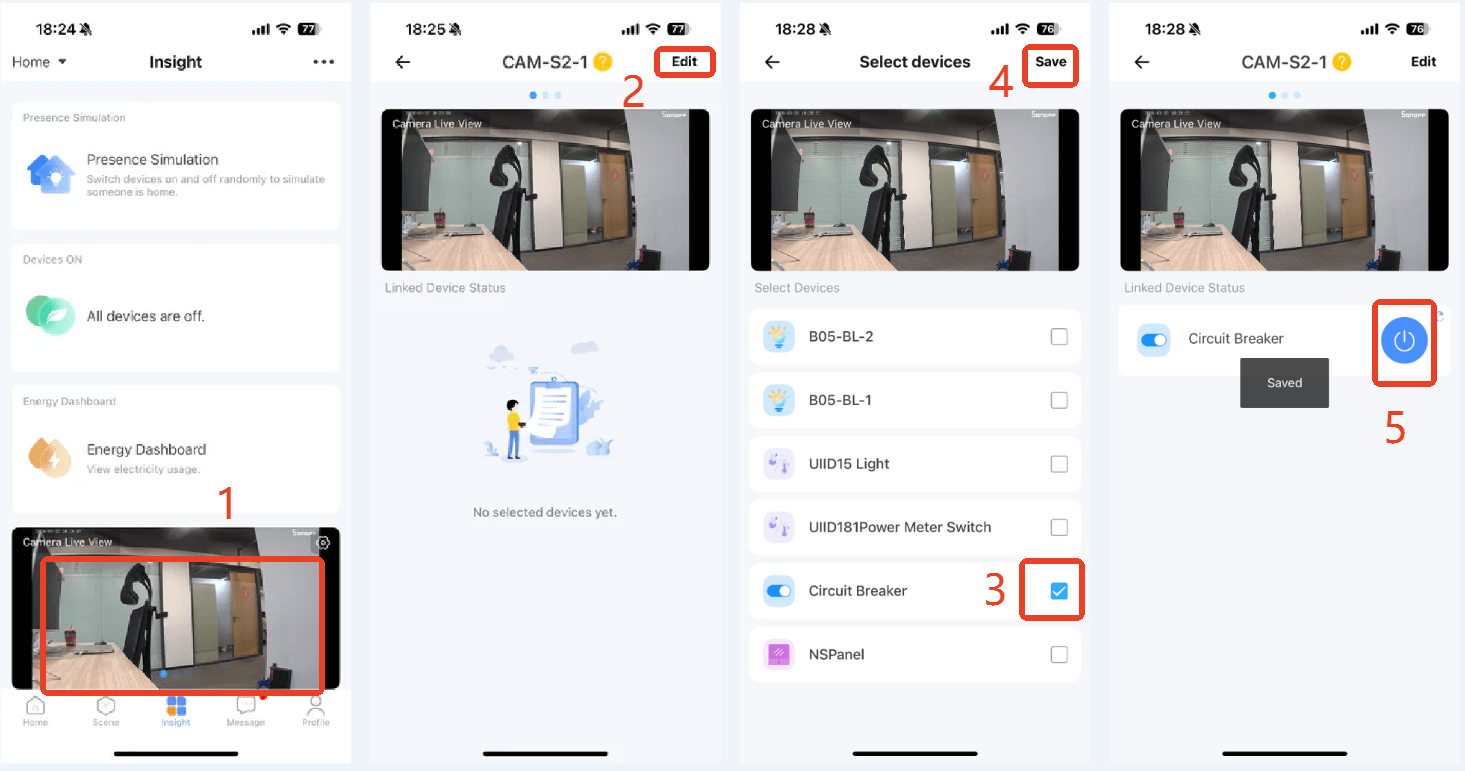
Available via the Insight tab, the “Camera Live View” feature combines real-time monitoring with active device control on a single, responsive screen:
It’s about making your smart home faster, more intuitive, and more efficient.
Before you start, ensure you have the following checked for a smooth setup:
Camera Live View is compatible with a wide range of smart devices. Below are some of the supported categories and model examples:
|
Cameras Types |
Eligible Camera Models |
|
Wi-Fi IP Security Camera |
SONOFF GK-200MP2-B SONOFF CAM-S2 SONOFF CAM-S2W |
|
Indoor Pan-tilt Security Camera |
SONOFF CAM-PT2 |
|
Outdoor Security Camera |
SONOFF CAM-B1P |
You can also use the following as cameras:
|
Device Type |
Eligible Device Models (Examples) |
|
Single-Channel Plug |
SONOFF BASIC_R3 SONOFF MINI SONOFF RF_R2 SONOFF S20R1 SONOFF S26 SONOFF S31 Lite SONOFF S55R1 SONOFF S30 AIB-xU1 CKCP-001 |
|
Single-Channel Plug_Support 2.4G eWeLink-Remote |
SONOFF BASICR4 SONOFF MINI-D SONOFF MINIR3 SONOFF MINIR4 SONOFF S40 lite BL1-S04-01 CK-BL602-4SW-AY |
|
DIY Smart Switch |
SONOFF Basic SONOFF RF SONOFF SV |
|
Single-Channel Switch |
SONOFF RF R2 SONOFF T1 1C SONOFF Touch SONOFF TX1C |
|
Four-Channel Plug |
SONOFF 4CH |
|
Power detection Plug |
SONOFF IW100_US SONOFF IW101_US SONOFF Pow R2 SONOFF POWR3 SONOFF S31 GSA-D76 PSA-X67-GL |
|
Three-Channel Switch |
SONOFF T1 3C SONOFF TX3C CKA-DM4-GL |
|
Dual-Channel Switch |
SONOFF T1 2C SONOFF TX2C |
|
Thermostat |
SONOFF S22_CN SONOFF TH10 SONOFF TH16 CK-BL602-TC-01 PSA-BHA-GL |
|
Dual-Channel Plug |
SONOFF DUALR2 CKW04-2C |
|
Multi-Functional Dual-Channel Power Detection Switch |
SONOFF DUALR3 E32-2SW-P0 |
|
Power Monitoring Plug Overload Alert – Multi-Channel Protocols |
SONOFF S40 SONOFF S40TPA SONOFF S40TPB CK-BL602-SWP1-01 |
|
Single-Channel Plug-Multi-channel version |
SONOFF Micro CKAM1 |
|
(POWCT) POWR3 – with LCD Screen |
SONOFF POWCT SONOFF POWR316 SONOFF POWR320D SONOFF S60TPF SONOFF S60TPG SN-ESP32D0-POWR3-01 |
|
Temperature & Humidity Monitoring Switch_Support with History Feature |
SONOFF TH16R3 SONOFF THR316 SONOFF THR320 CK-BL602-W302SE10-01 |
|
RGBCW LED Bulb Light, with 2.4G eWeLink-Remote |
SONOFF B05-BL BL1-ALL-LED CK-BL602-5PWM-01 |
|
HMI Wall Switch |
SONOFF NSPanel E32-MSW-NX |
|
Four-Channel Plug_Support 2.4G eWeLink-Remote |
BL1-S04-01 CK-BL602-4SW-HS |
|
Zigbee Smart Switch |
SONOFF S26R2ZBTPG |
|
Smart Plug with Power Monitoring |
SONOFF Pow |
|
Curtain Motor |
CK-BL602-DDCL-01 |
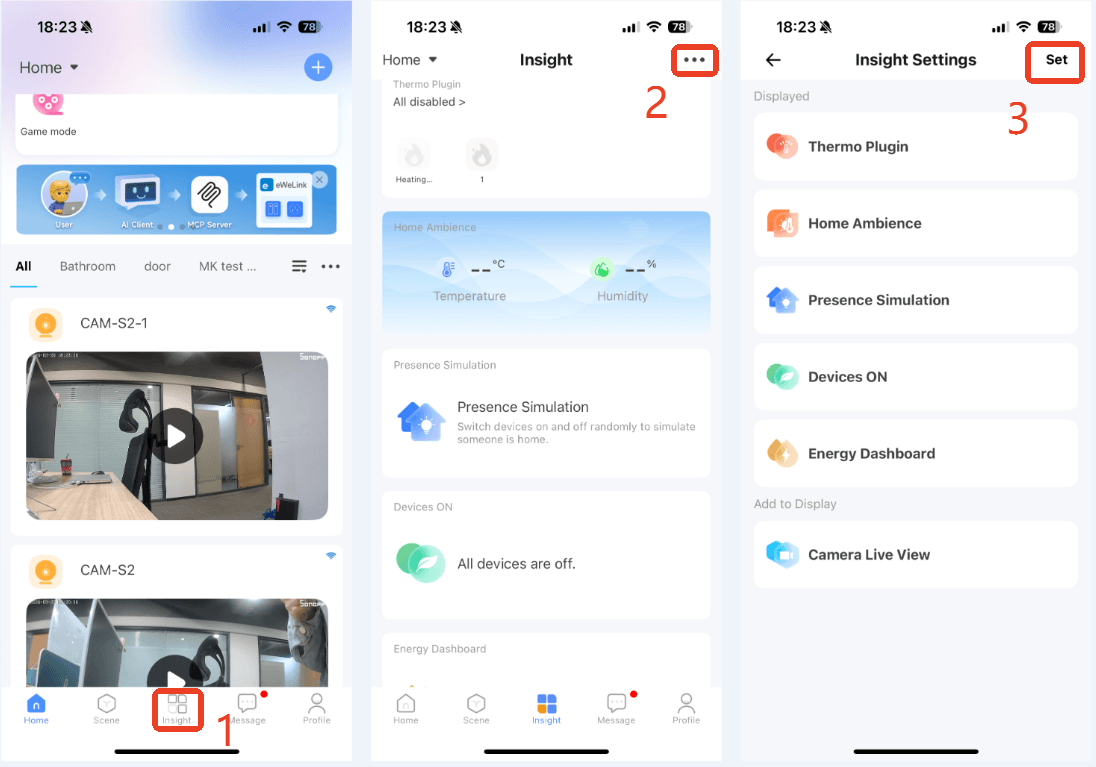
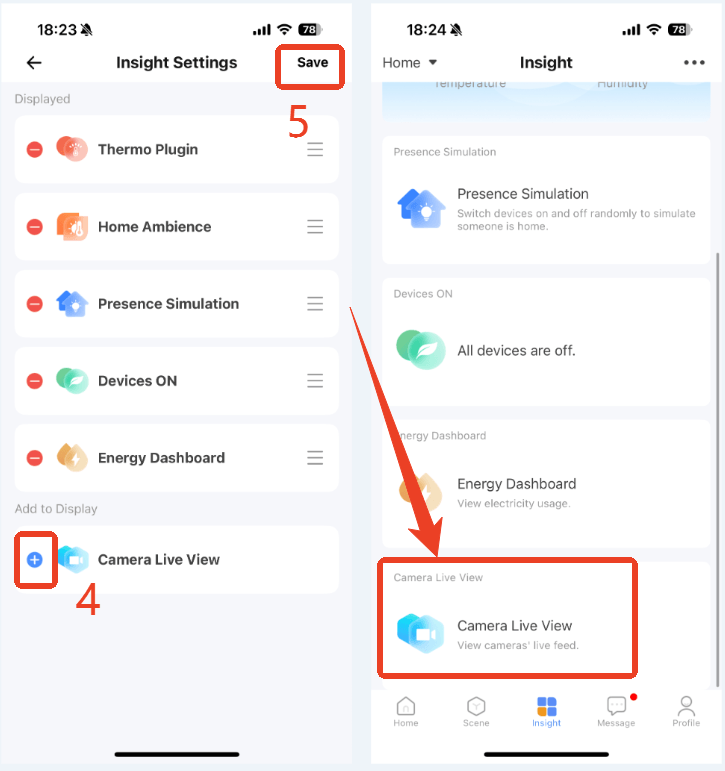
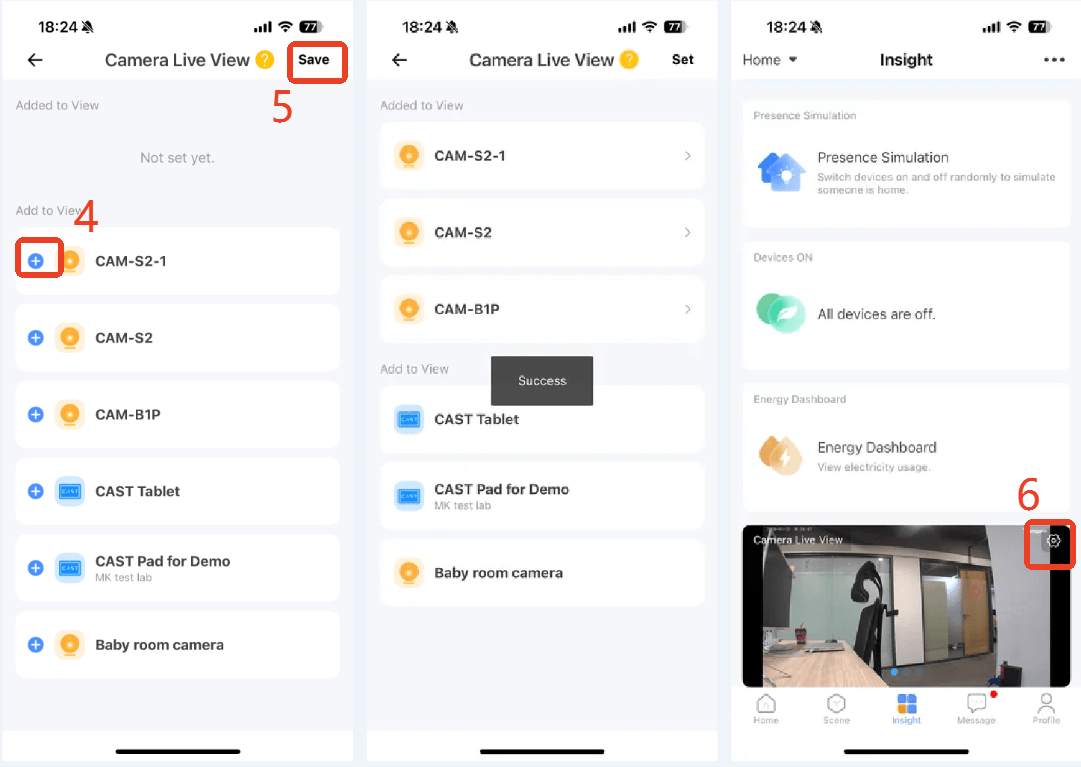
Now, the Camera Live View section is ready for further configuration within your Insight tab.
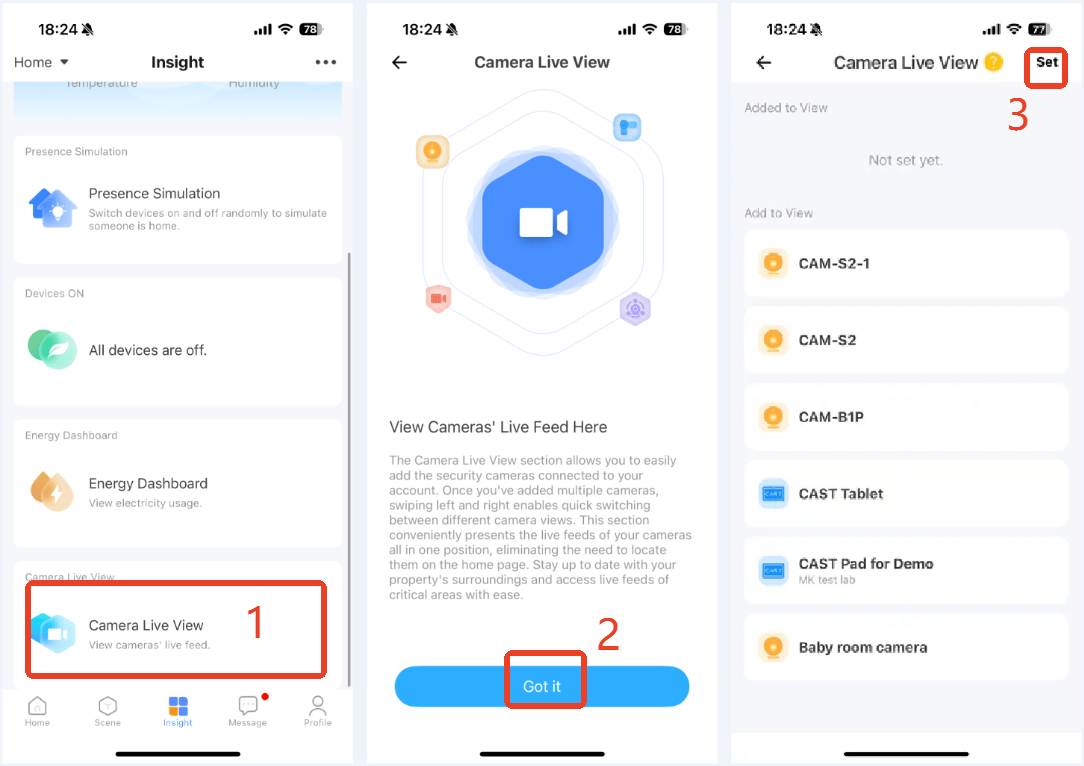
Want to take your monitoring to the next level? Try eWeLink WEB to monitor up to 3 live feeds simultaneously on a single, larger screen for a more comprehensive view. (Requires an eWeLink Advanced/Prime Plan subscription)
You’re all set!
With Camera Live View, you can experience a smarter, safer home, making your daily monitoring and control simpler, more intuitive, and more efficient. Enjoy the effortless control right at your fingertips!
What important features are we missing? We’d love to hear from you! Join our discussion here.
Bridge smart home platforms and trigger entire scenes across ecosystems with a single virtual switch or button.
Experience real-time monitoring and instant device control from the same screen.
Automate your home climate with the eWeLink Thermo Plugin—smart, simple, and shareable.
With the eWeLink app V5.22, Prime members get higher limits for virtual devices, thermostat plugins, and device sharing.