A Comprehensive Guide to eWeLink Virtual Devices
Bridge smart home platforms and trigger entire scenes across ecosystems with a single virtual switch or button.

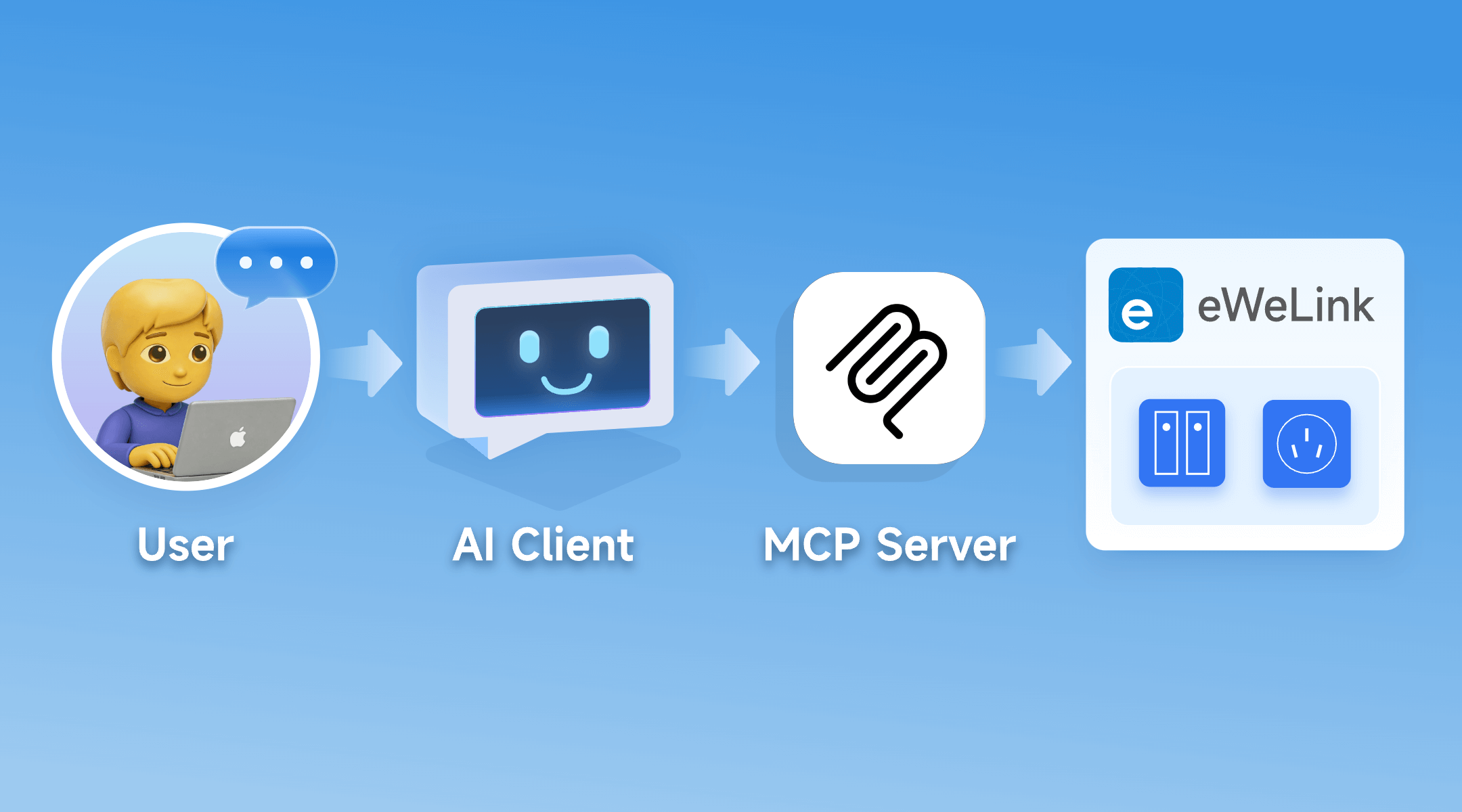
With eWeLink MCP Server (V5.22, Prime), you can connect MCP-compatible AI clients and agents to your eWeLink account and control supported smart devices with simple, natural-language commands. Built on the Model Context Protocol (MCP), it bridges advanced AI assistants and your IoT devices—so you can query what’s on, check device status, and trigger actions through a conversational interface.
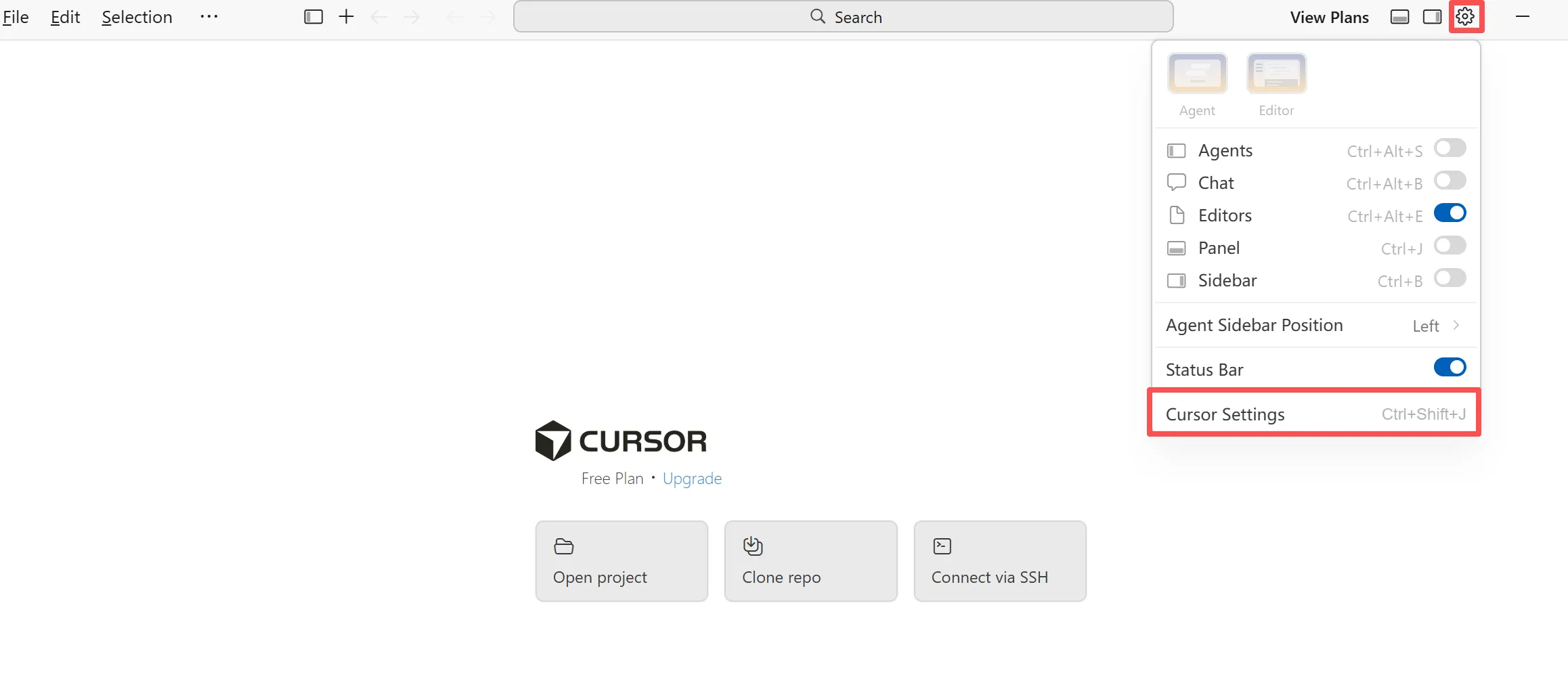
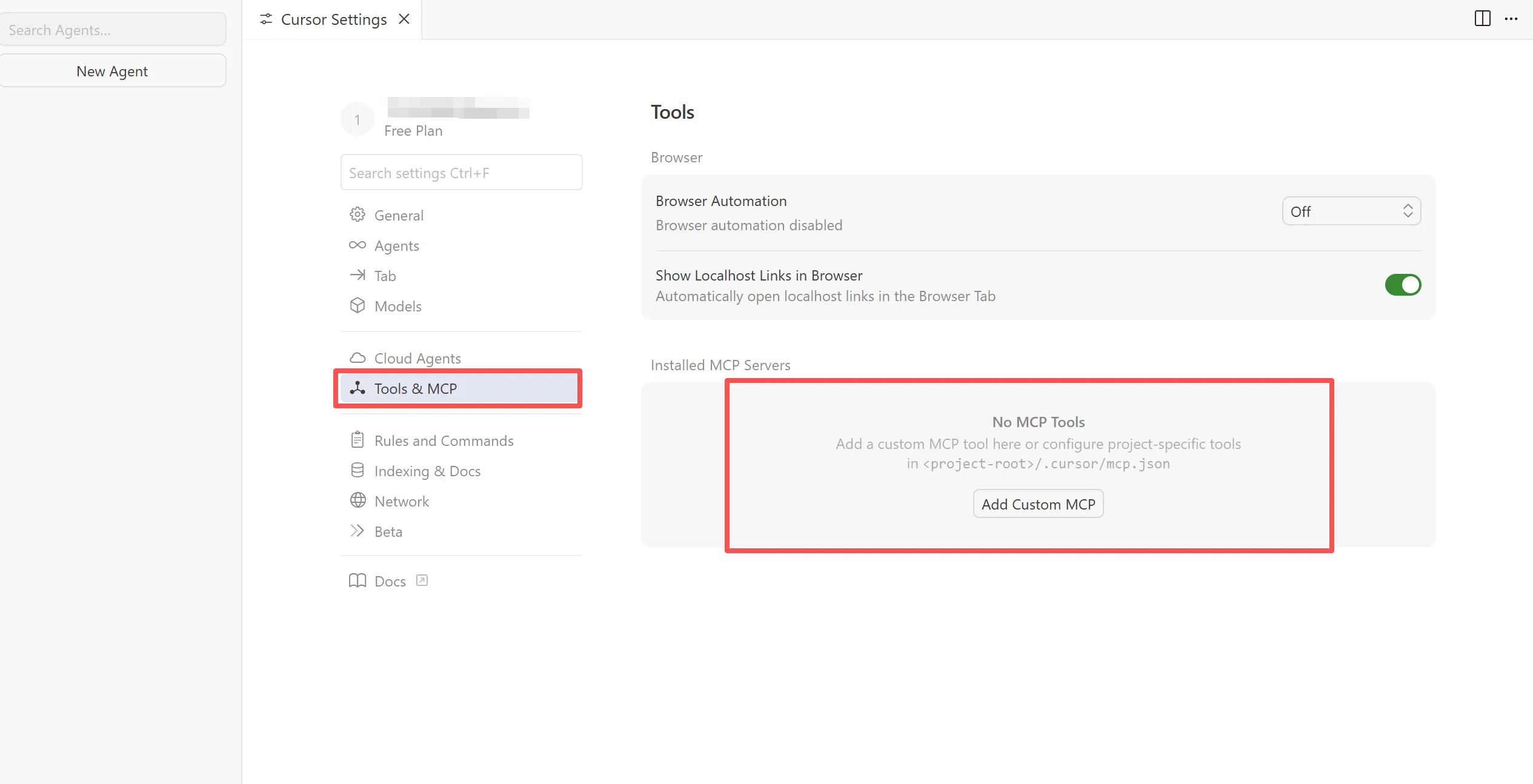
This step-by-step guide covers the full setup: enabling MCP Server in the app, generating your MCP URL, connecting it in Cursor, and running a few simple prompts to confirm it’s working.
After entering the MCP Server page, you’ll see access management options:
Best practice: If you ever suspect the URL was shared or exposed, use Revoke Authorization, then generate a fresh URL.
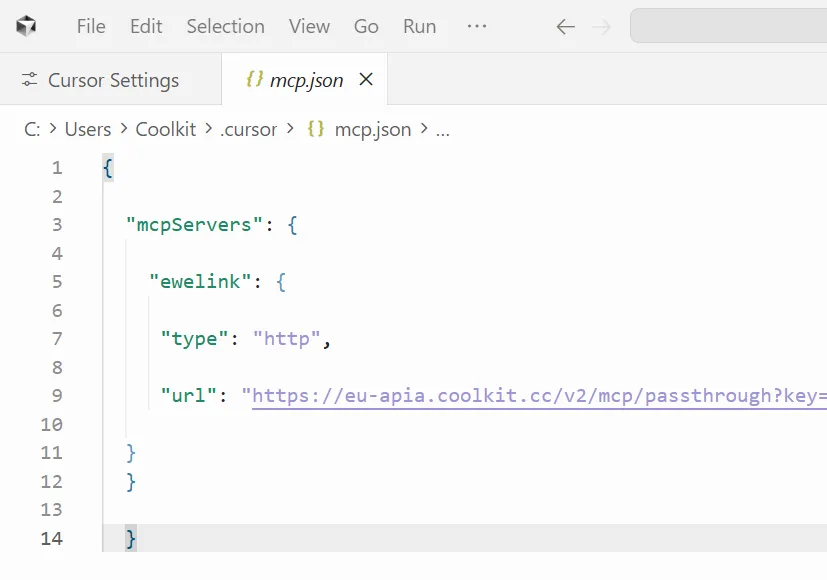
{

"mcpServers": {

  "ewelink": {

   "type": "http",

   "url": "PASTE_YOUR_eWeLink_MCP_SERVER_URL_HERE"

  }
  }

  }
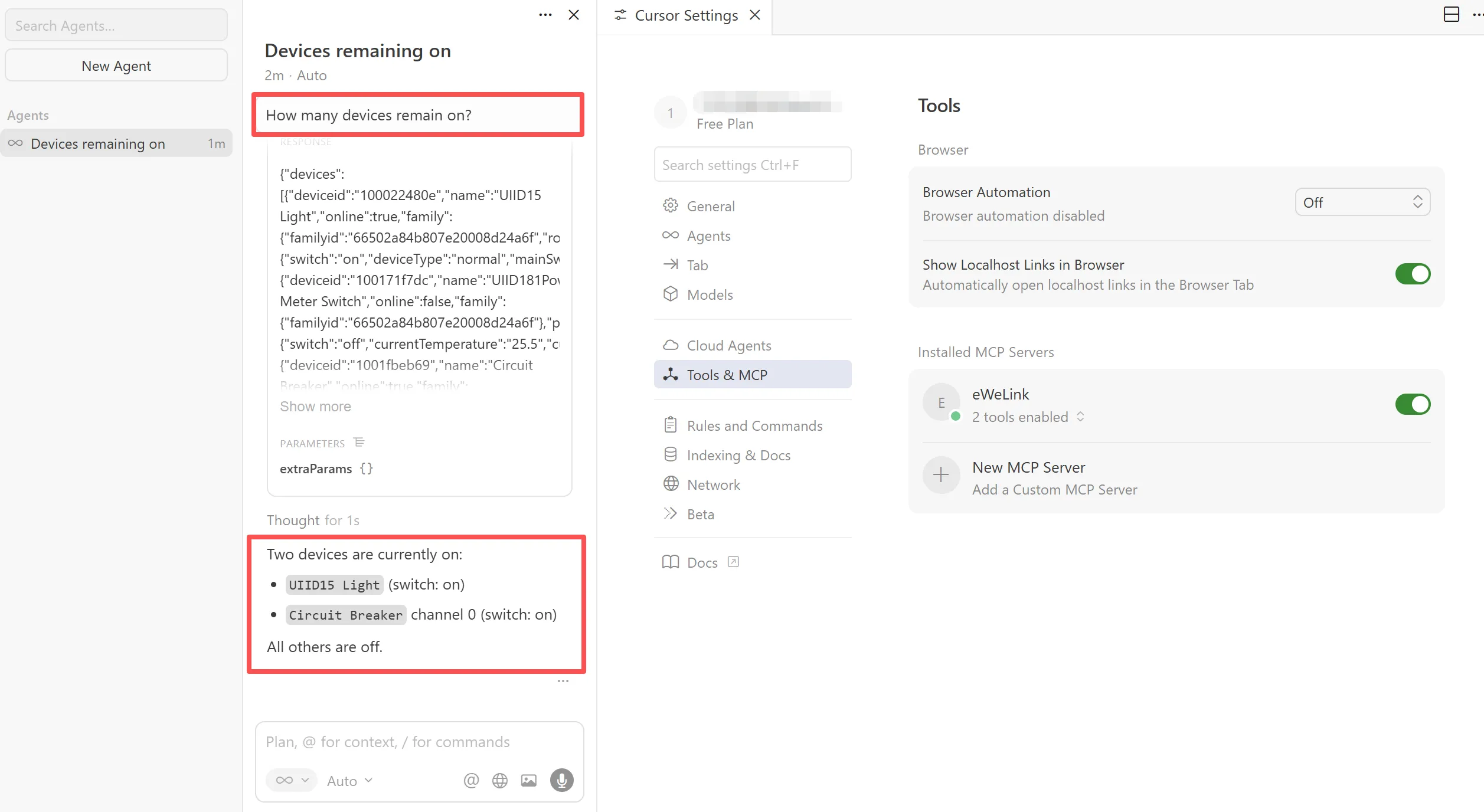
Recommended: Turn on the Auto option in the toolbar. MCP support can vary across agent modes, and Auto helps select the most suitable one.
Once configured, try these conversation starters with your AI assistant:
This is an initial release, so expect a few boundaries:
The initial rollout focuses on switches and plugs, including popular models like
Device Type | Eligible Device Models (Examples) |
Single-Channel Plug | SONOFF BASIC_R3 SONOFF MINI SONOFF RF_R2 SONOFF S20R1 SONOFF S26 SONOFF S31 Lite SONOFF S55R1 SONOFF S30 AIB-xU1 CKCP-001 |
Single-Channel Plug_Support 2.4G eWeLink-Remote | SONOFF BASICR4 SONOFF MINIR3 SONOFF MINIR4 SONOFF S40 lite CK-BL602-4SW-AY |
DIY Smart Switch | SONOFF Basic SONOFF RF SONOFF SV |
Single-Channel Switch | SONOFF RF R2 SONOFF T1 1C SONOFF Touch SONOFF TX1C |
Four-Channel Plug | SONOFF 4CH |
Power detection Plug | SONOFF IW100_US SONOFF IW101_US SONOFF Pow R2 SONOFF POWR3 SONOFF S31 PSA-X67-GL |
Three-Channel Switch | SONOFF T1 3C SONOFF TX3C |
Dual-Channel Switch | SONOFF T1 2C SONOFF TX2C |
Temp & Humi Monitoring Smart Switch | SONOFF S22_CN SONOFF TH10 SONOFF TH16 PSA-BHA-GL |
Dual-Channel Plug | SONOFF DUALR2 |
Power Monitoring Plug Overload Alert – Multi-Channel Protocols | SONOFF S40 SONOFF S40TPA SONOFF S40TPB |
(POWCT)POWR3 – with LCD Screen | SONOFF POWCT SONOFF POWR316 SONOFF POWR320D SONOFF S60TPF SONOFF S60TPG |
Temperature & Humidity Monitoring Switch_Support with History Feature | SONOFF TH16R3 SONOFF THR316 SONOFF THR320 SN-ESP32D0-THR3-01 |
Single-Channel Plug-Multi-channel version | SONOFF Micro |
Four-Channel Plug_Support 2.4G eWeLink-Remote | BL1-S04-01 CK-BL602-4SW-HS |
You’re all set. Enable the MCP Server in the eWeLink app, connect it to your AI client, and start controlling supported devices with simple, natural-language commands.
What important features are we missing? We’d love to hear from you! Join our discussion here.
Bridge smart home platforms and trigger entire scenes across ecosystems with a single virtual switch or button.
Experience real-time monitoring and instant device control from the same screen.
Automate your home climate with the eWeLink Thermo Plugin—smart, simple, and shareable.
With the eWeLink app V5.22, Prime members get higher limits for virtual devices, thermostat plugins, and device sharing.